Syncing to Garmin with the data field
Your race plan and splits on your Garmin.
This guide covers connecting your Garmin account, syncing your Race Goals splits, and running your first workout from your wrist. There are several steps, so follow them in order.
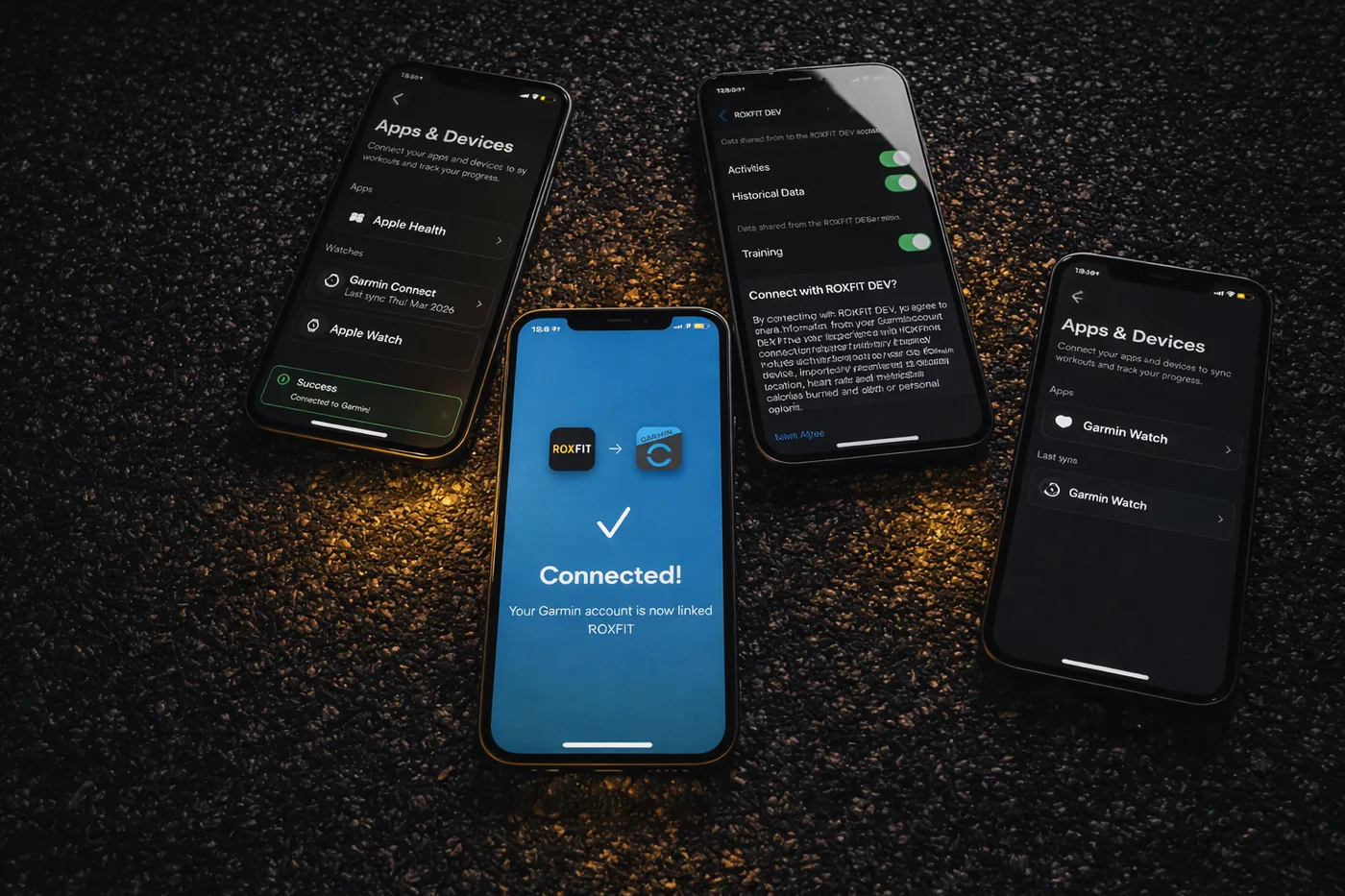
1. Connecting ROXFIT to Garmin
ROXFIT connects to Garmin via Garmin Connect using a secure OAuth link. You only need to set this up once.
What you need
- A Garmin watch
- A Garmin Connect account
- ROXFIT installed on your phone
Steps
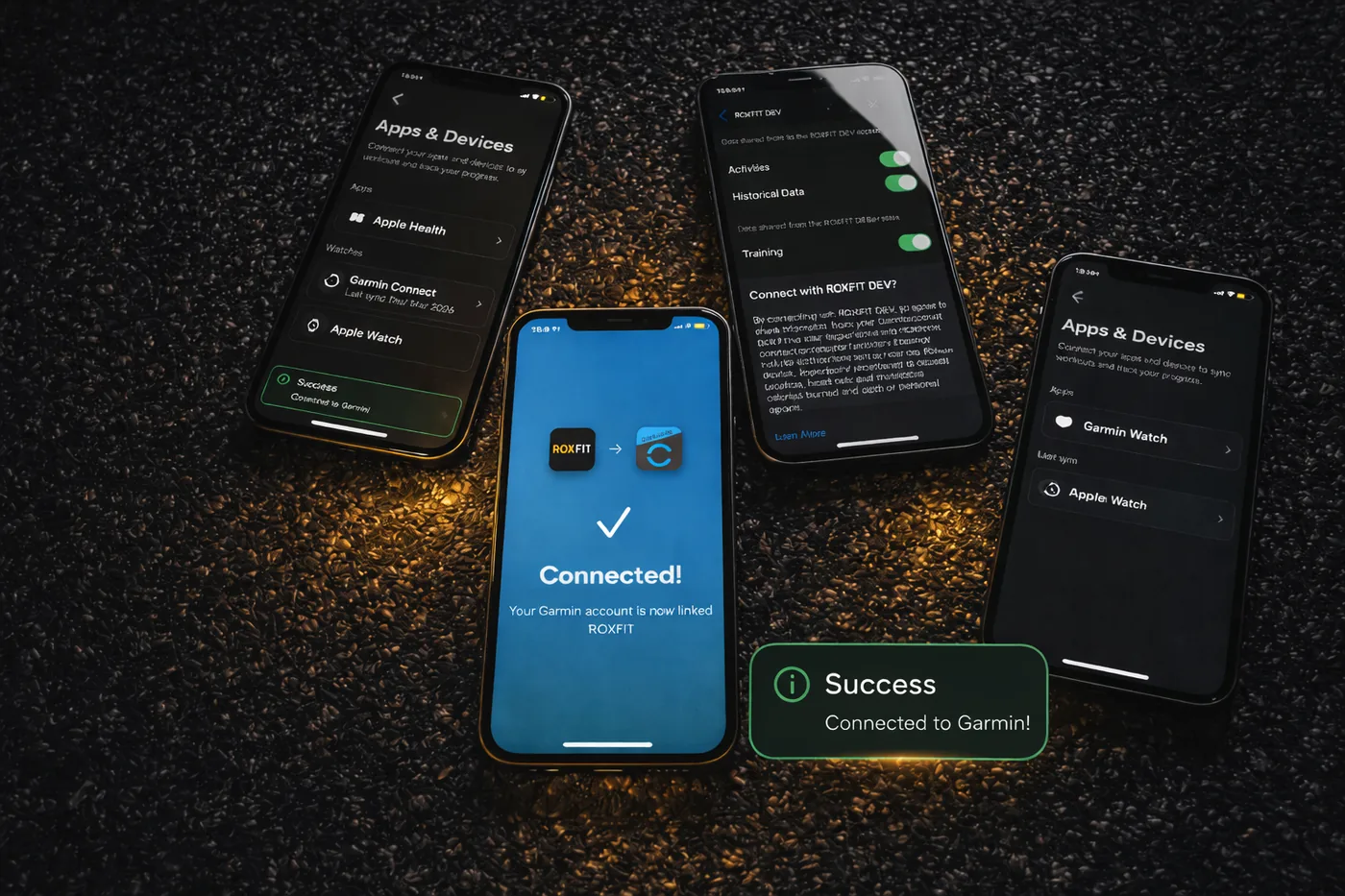
- Open ROXFIT, go to the Profile page and tap the settings icon in the top-right corner.
- Tap Connected Apps & Devices.
- Select Garmin.
- You'll be redirected to the Garmin Connect sign-in page.
- Log in with your Garmin Connect credentials.
- Make sure both permission toggles are switched to ON (both are needed).
- Tap Agree to authorise ROXFIT.
- You'll be redirected back to ROXFIT with a confirmation.
2. Installing the ROXFIT Data Field
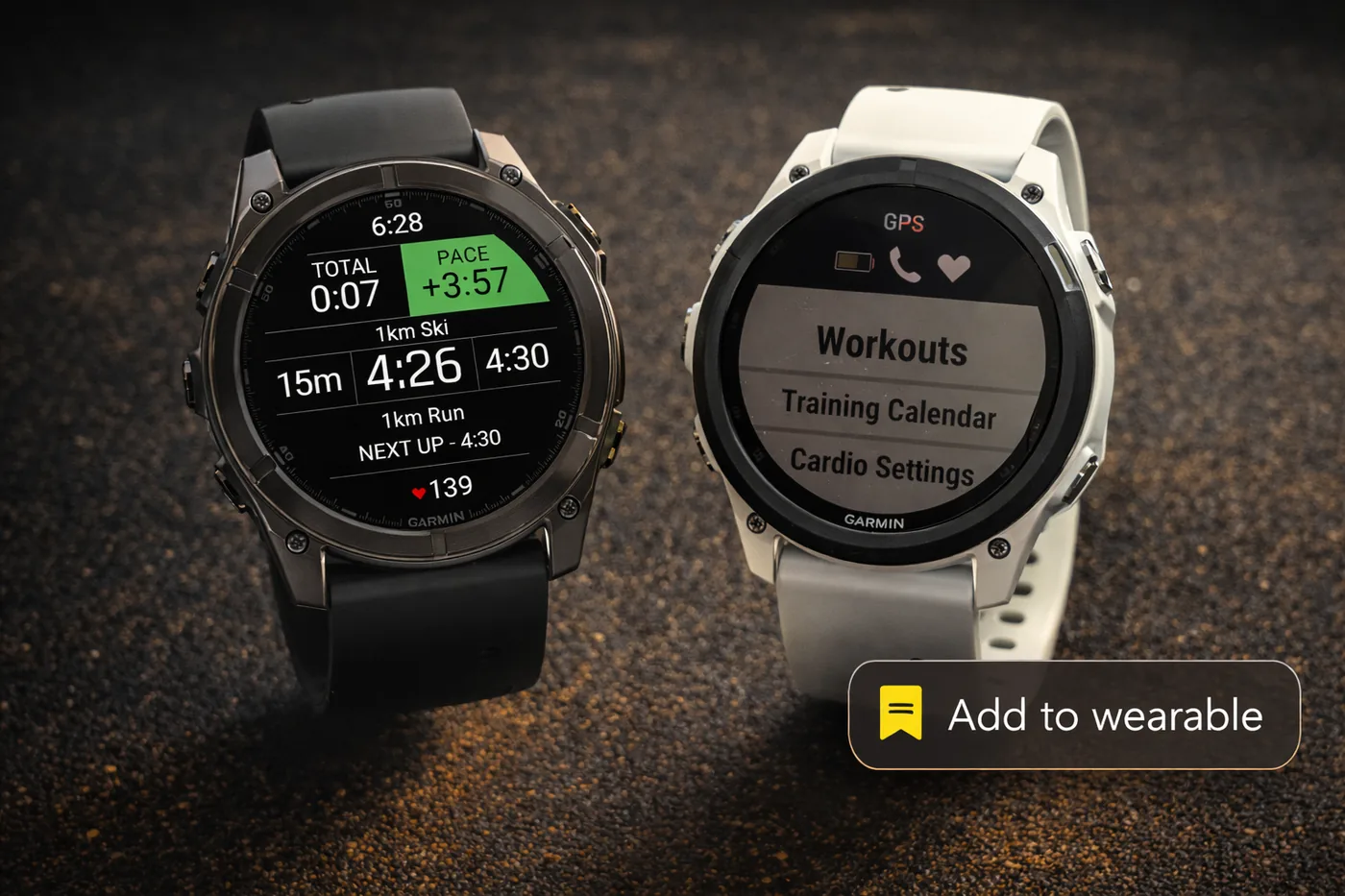
The ROXFIT Data Field is a custom display for your Garmin that shows your workout steps, pace targets, and live timing during any activity. Everything is on one screen.
What it shows
| Field | What you see |
|---|---|
| Current exercise | Name and target for the current step |
| Remaining | Time or distance left on the current step |
| Target pace | Your target pace for the current running segment |
| Pace delta | How far ahead or behind target (+/-) |
| Next up | Preview of the next exercise and its target |
| Heart rate | Current heart rate |
| Total | Total elapsed workout time |
Install the Data Field
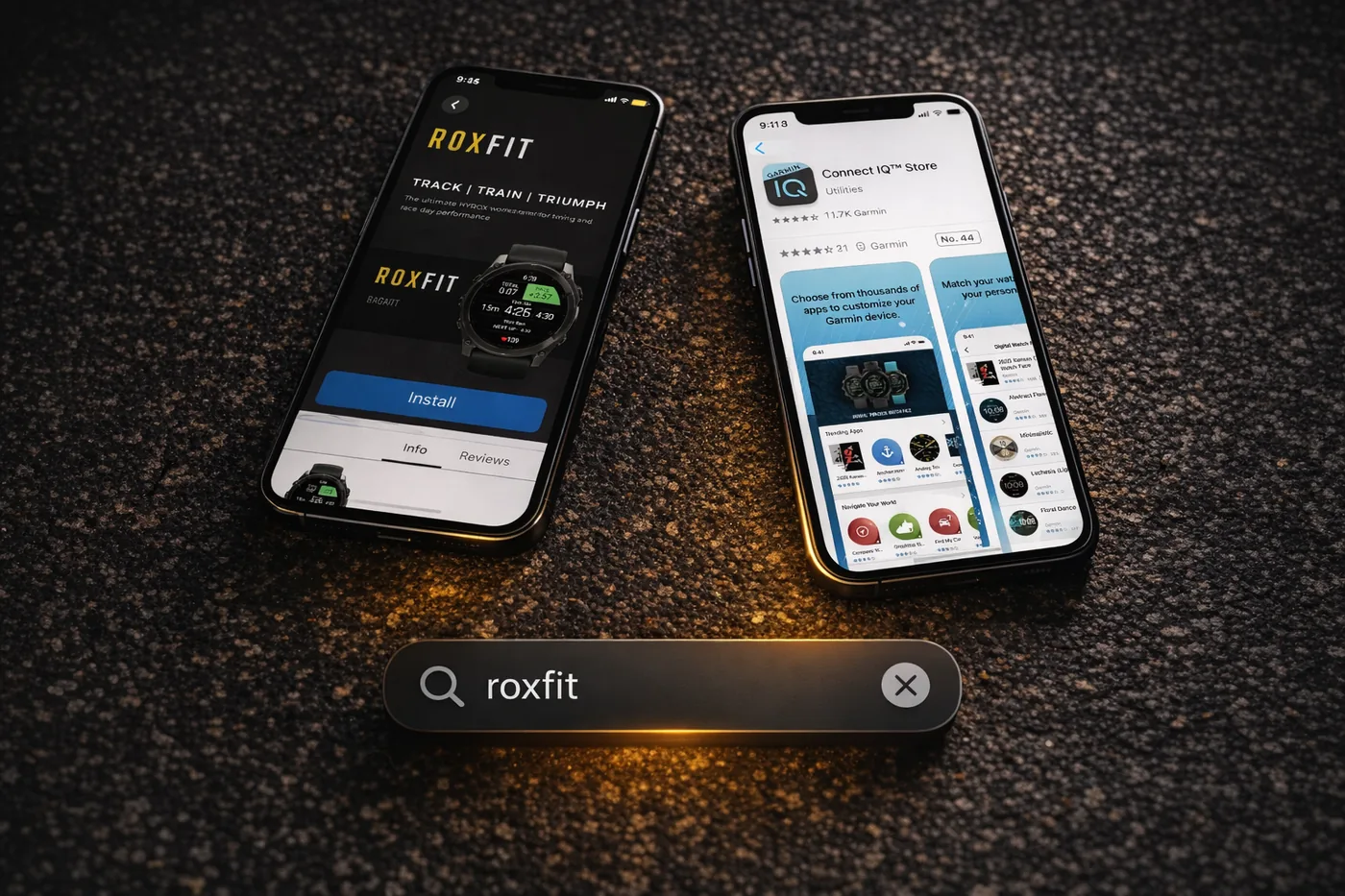
- Open the Garmin Connect IQ app on your phone (or visit the Connect IQ Store).
- Search for "ROXFIT".
- Tap Install.
Set it up on your watch
- Go to the workout MENU on your Garmin.
- Select Activities & Apps (not available on all Garmin models).
- Select Run.
- Select Run Settings > Data Screens > Add > Custom Data.
- Select 1 Data Field. This gives ROXFIT the full screen, which it needs to show everything clearly.
- Select ConnectIQ Data Fields and choose ROXFIT.
3. Syncing a workout
Any ROXFIT workout, whether a training workout, a custom build, a plan workout or your Race Goals race plan, syncs to Garmin the same way, through Garmin Connect.
Steps
- Open the workout and tap Get started.
- Under Selected device, tap Change, choose Garmin Connect, then tap Continue.
- Tap Let's go.
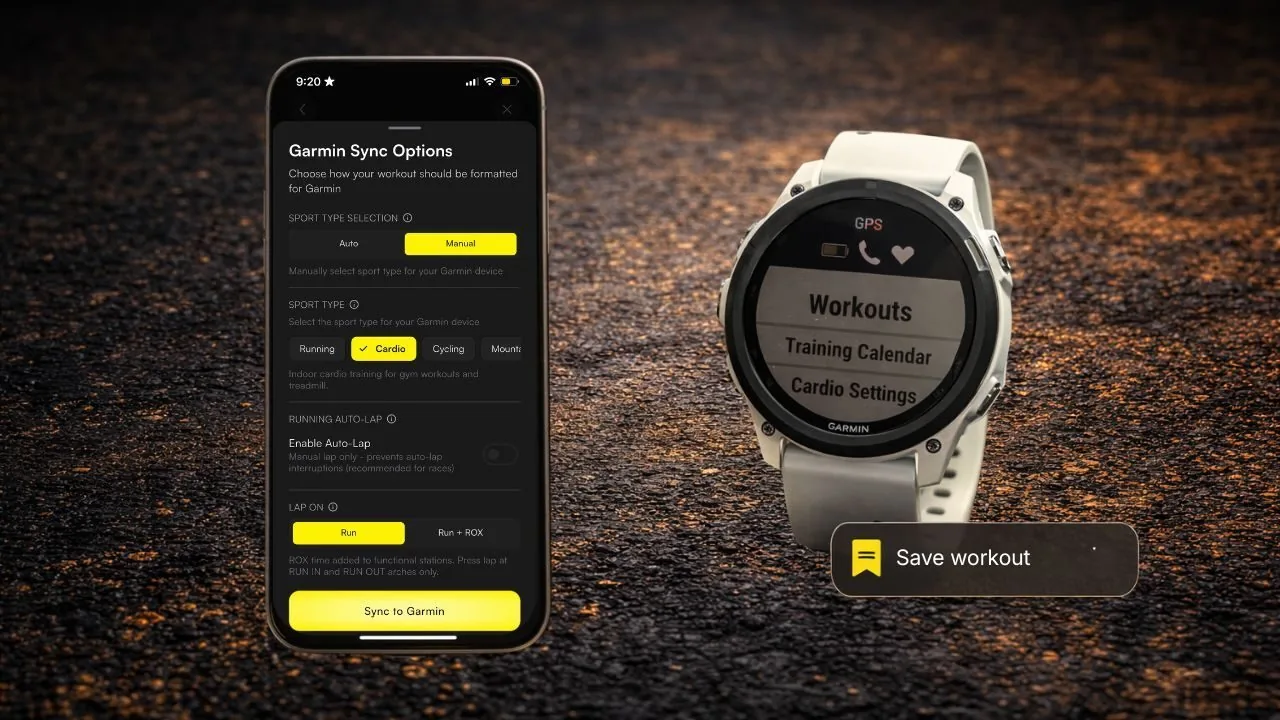
- In Garmin sync options, choose the sport type and auto-lap setting (see section 4).
- Tap Sync to Garmin. ROXFIT confirms with "Workout sent to your Garmin Connect".
Then send it to your watch from Garmin Connect (section 5).
4. Understanding sync options
Read this before your first sync. These settings affect how your workout behaves on the watch.
Sport Type
| Option | When to use |
|---|---|
| Auto (recommended) | Automatically detects sport type from your exercises. |
| Manual | Pick the sport type yourself, such as Running, Cardio or Strength training. Useful for older devices (Forerunner 935, Fenix 5 and older). |
Running Auto-Lap
| Option | When to use |
|---|---|
| Enabled | Garmin auto-laps at each running distance. Good for per-km splits in training with GPS connectivity. |
| Disabled (recommended) | Manual lap only. Prevents auto-lap interruptions. Recommended for races. |
5. Sending the workout to your watch
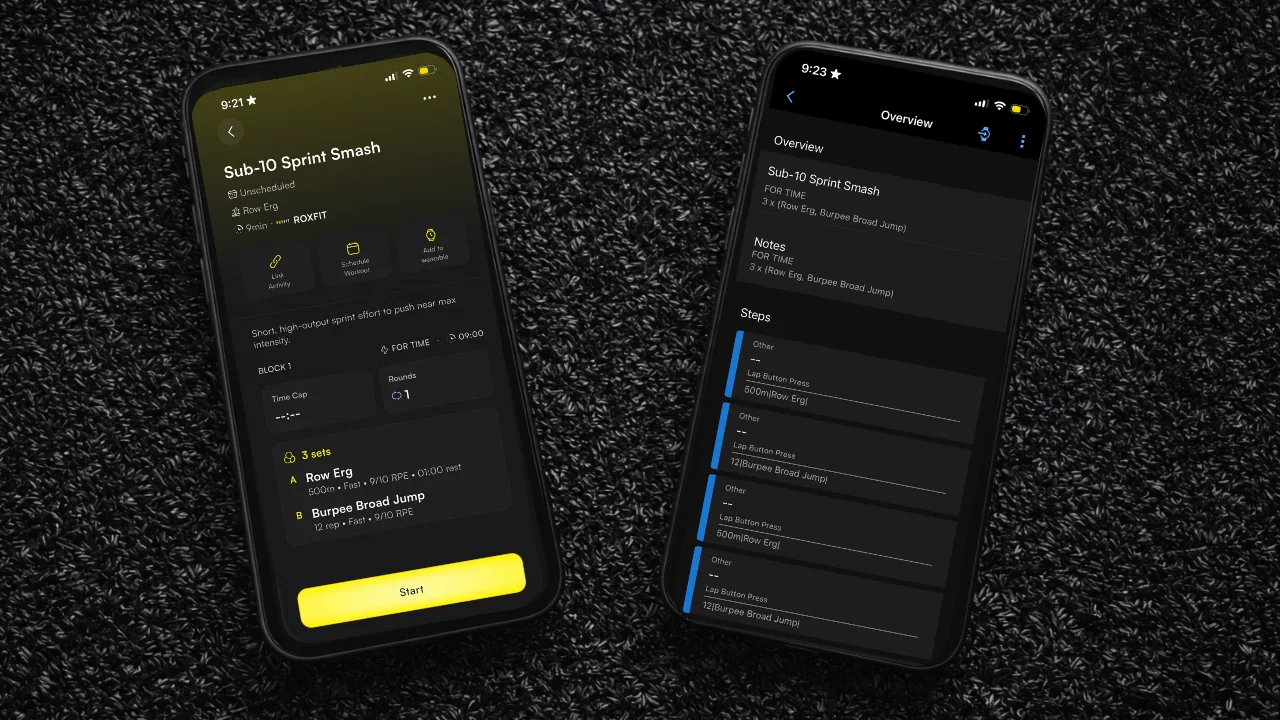
After syncing from ROXFIT, the workout lands in Garmin Connect. You then need to send it from Garmin Connect to your watch. It is one extra step, the same as sending any other run or activity you plan in Garmin Connect.
Steps
- Open the Garmin Connect app on your phone.
- Go to More > Training & Planning > Workouts.
- Find your workout under Saved Workouts and tap it.
- Tap the send to watch icon in the top right.
- Wait for it to sync. Make sure your watch is connected via Bluetooth, and give it a minute or two.
6. Running your workout
Steps
- On your Garmin, select your Run activity (or the activity type you synced with).
- Go to Options > Workouts (you may need to select My Workouts depending on your device).
- Find your ROXFIT workout and tap Do Workout.
- If the ROXFIT data screen doesn't appear instantly, scroll through the data pages to find it.
During the workout
The Data Field shows your current exercise, target, and next exercise. Press the lap button to advance when you complete each exercise. Pace delta and heart rate run throughout.
Lap button guide
| Mode | When to press lap |
|---|---|
| Standard workouts | When each exercise is complete |
Finishing
Save your workout on the watch when you're done. That data is what syncs back to ROXFIT, so if you tap discard it's gone for good.
Note: You cannot edit the splits of a workout or race once it is complete, so if you forget to lap your watch, we cannot change it.
7. Viewing your results
Results flow back to ROXFIT automatically. You don't need to do anything manually, but you do need to make sure the chain completes.
How it works
- Save your workout on the Garmin watch.
- Your watch syncs to Garmin Connect (keep your phone nearby with the app open).
- Garmin Connect sends the data to ROXFIT automatically.
- Open ROXFIT. Your completed workout appears in your feed.
The sync typically takes 1-5 minutes after your watch connects to Garmin Connect. If it's been more than 10 minutes, check that the activity has appeared in Garmin Connect first. If it's there but not in ROXFIT, give it a few more minutes. If it's not in Garmin Connect at all, sync your watch manually via the app.
What syncs to ROXFIT
- Exercise splits and lap times per station
- Running pace per segment
- Heart rate throughout
- Total workout duration
- Roxzone times (HYROX workouts)
- Garmin device info (e.g. "Garmin Fenix 7")
8. Troubleshooting
| Issue | Fix |
|---|---|
| Can't connect Garmin | Make sure you're logged into the correct Garmin Connect account and both permission toggles are ON. Try disconnecting and reconnecting from Devices. |
| Workout not in Garmin Connect | Check ROXFIT showed "Workout sent to your Garmin Connect" after you tapped Sync to Garmin, and that Garmin Connect was your selected device. If not, sync again. |
| Workout not on watch | Open Garmin Connect, go to More > Training & Planning > Workouts > Saved Workouts, tap your workout and tap the send to watch icon. Make sure your watch is connected via Bluetooth. |
| Sending still doesn't work | Delete and reinstall ROXFIT on your phone, then follow the sync steps again. |
| Data field not showing | Scroll through the data pages during the activity. |
| Results not syncing | Check your watch has synced with Garmin Connect. The activity should appear at the top of your Garmin Connect homepage. |
| "Sport type not supported" | Switch to Manual sport type in sync options and select Running or Cardio. Older devices may not support auto-detection. |
| Auto-lap interrupting transitions | Re-sync with Running Auto-Lap set to Disabled. |
