Syncing to Apple Watch
Your workout. Your watch. Your wrist.
Phone-free training starts here. This guide covers pairing your Apple Watch, syncing Race Goals splits and training workouts, running a session with no phone in sight using Free Train, and racing yourself, a friend, or your race plan with Race a Delta.
1. Pairing your Apple Watch
No separate login, no account linking. Your Apple Watch connects to ROXFIT automatically as long as it's paired to the same iPhone.
What you need
- iPhone with ROXFIT installed
- Apple Watch paired to the same iPhone
- ROXFIT Watch app installed (it comes bundled with the iOS app - you may just need to confirm installation)
Steps
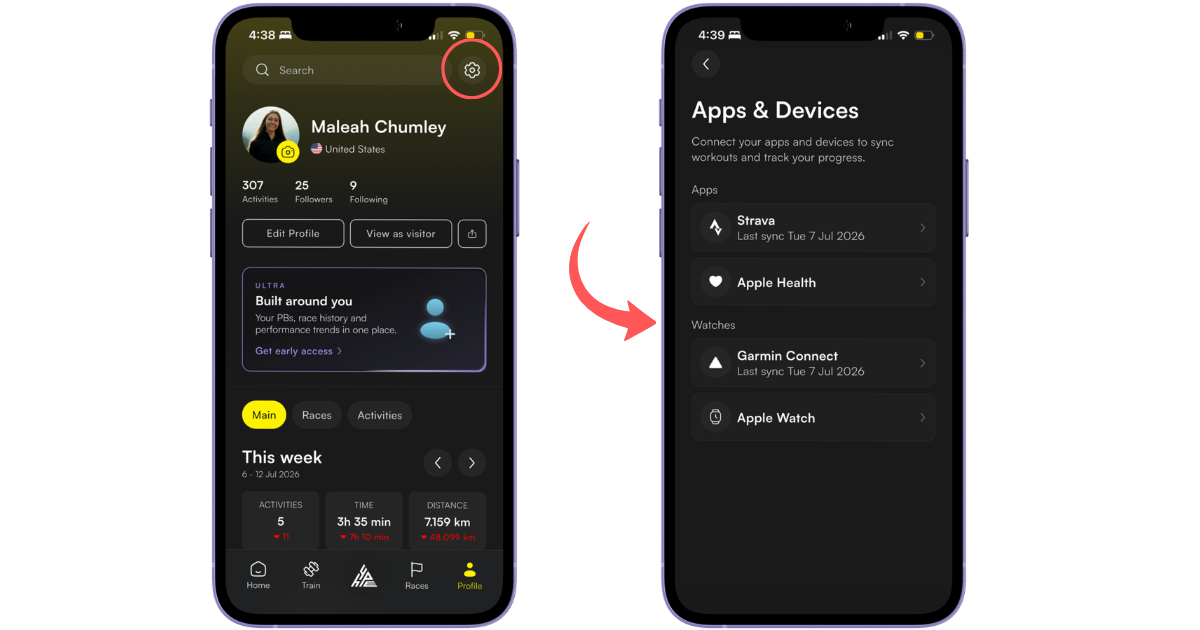
- Open ROXFIT on your iPhone.
- Tap the profile icon in the bottom-right corner.
- Tap the settings cog in the top-right corner.
- Tap Connected apps and devices.
- Select Apple Watch. ROXFIT detects and registers it automatically.
2. Granting permissions
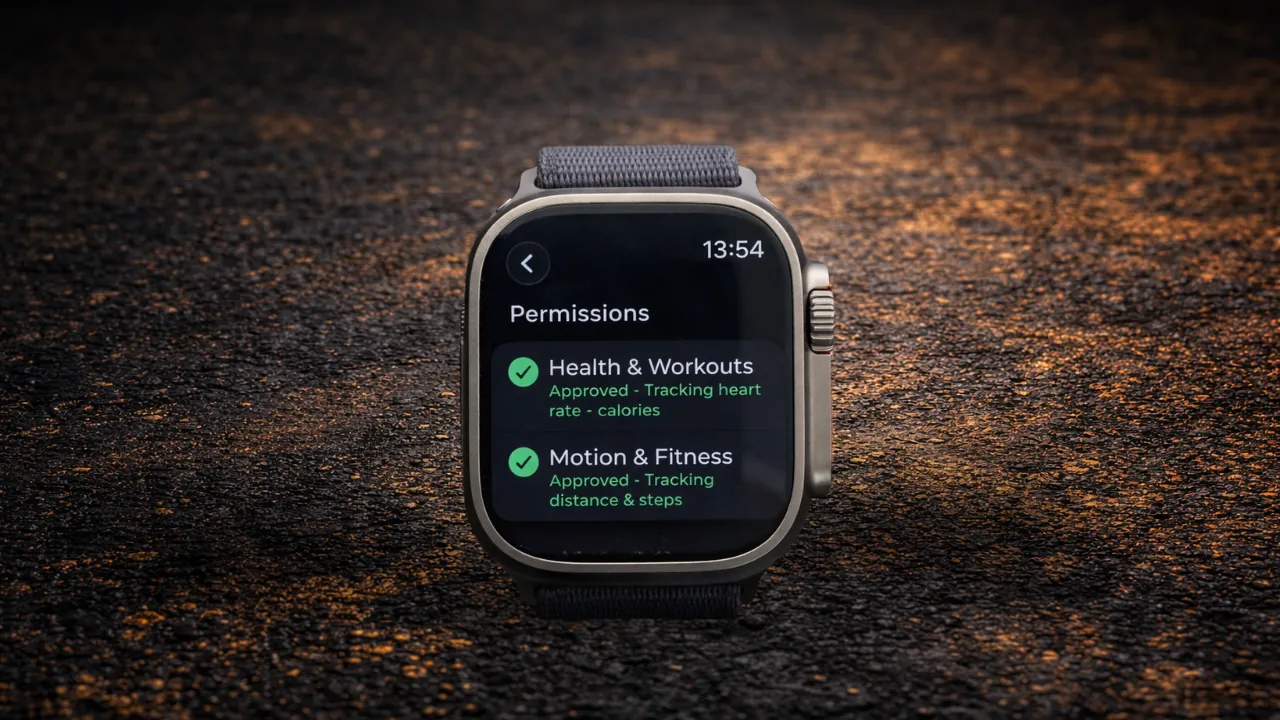
The first time you open ROXFIT on your watch, it asks for two permissions: Health & Workouts and Motion & Fitness. Approve both. Without them your sessions will be missing data - heart rate, calories, distance, and pace all depend on them.
3. How workouts get to your watch
Structured workouts and race plans are set up on your phone and synced to the watch. The phone is your control room. The watch is your player.
There's one exception. Free Train lets you start a quick timer session straight from the watch, no phone or sync needed. See section 6.
Sending a workout to your watch
- Open ROXFIT on your iPhone.
- Find or create a workout.
- Tap the yellow Get Started button on the workout.
- Select the device to send it to, or add a new device.
- On the Sport Type Selection screen, select Auto. Leave Auto-Lap disabled so each station and run segment records as a manual lap.
- Tap the yellow Sync to Apple Watch button.
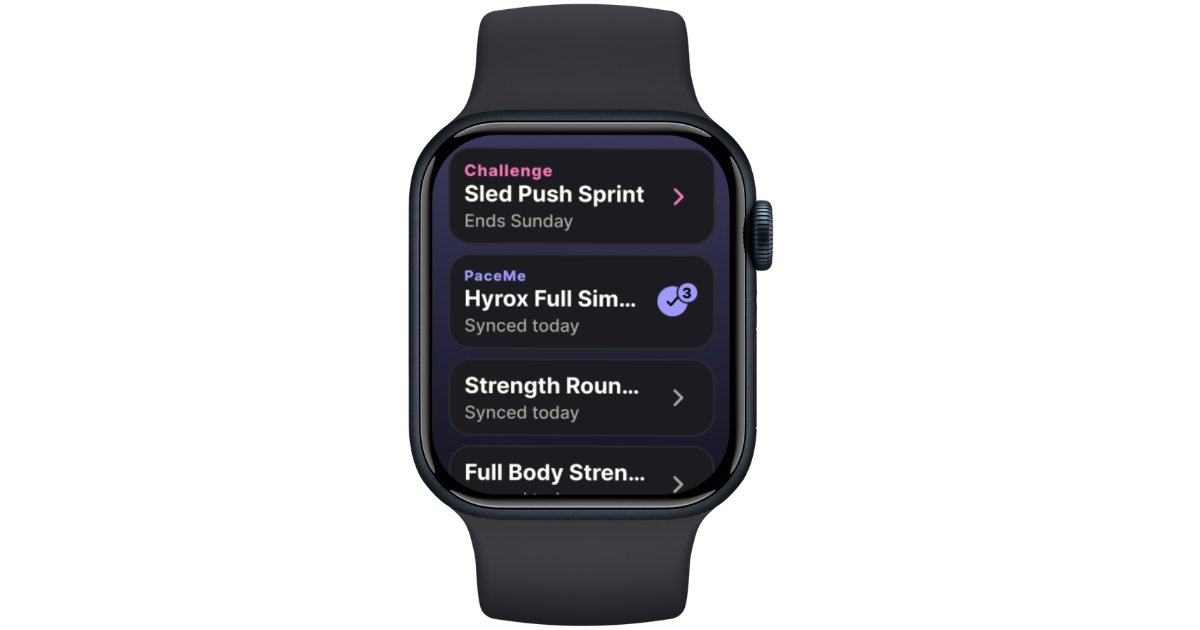
Synced workouts appear in your watch's workout list automatically. You can have multiple on the watch at once - useful if you're training more than once in a day or a week.
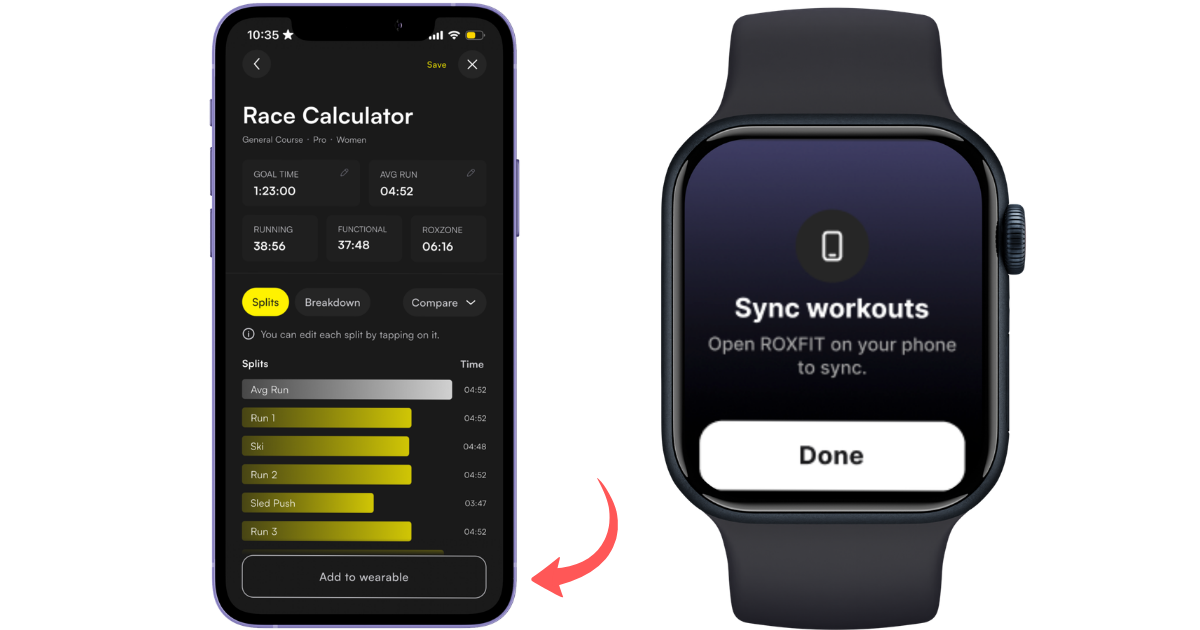
4. Syncing a Race Goals workout
Race Goals is your race plan. When it's on your wrist, you see at every station whether you're ahead or behind your target, live.
Steps
- On the Race Calculator page, tap the event you want to race.
- Set up the race target you want to achieve. Your goal time, station splits, and run pace. This is the target your watch will race you against on the day.
- Tap Add pacing to wearable.
- Select Apple Watch from the device list and tap Confirm.
- Choose your settings. We recommend Auto sport detection - when you select a Run activity, your Race Goals plan appears as an option to complete the workout.
- Tap Sync to Apple Watch.
- Wait for the confirmation: "Workout synced to [Watch Name]!"
During the race you'll see a live pace delta, seconds ahead or behind your target at every checkpoint.
5. Syncing a training workout
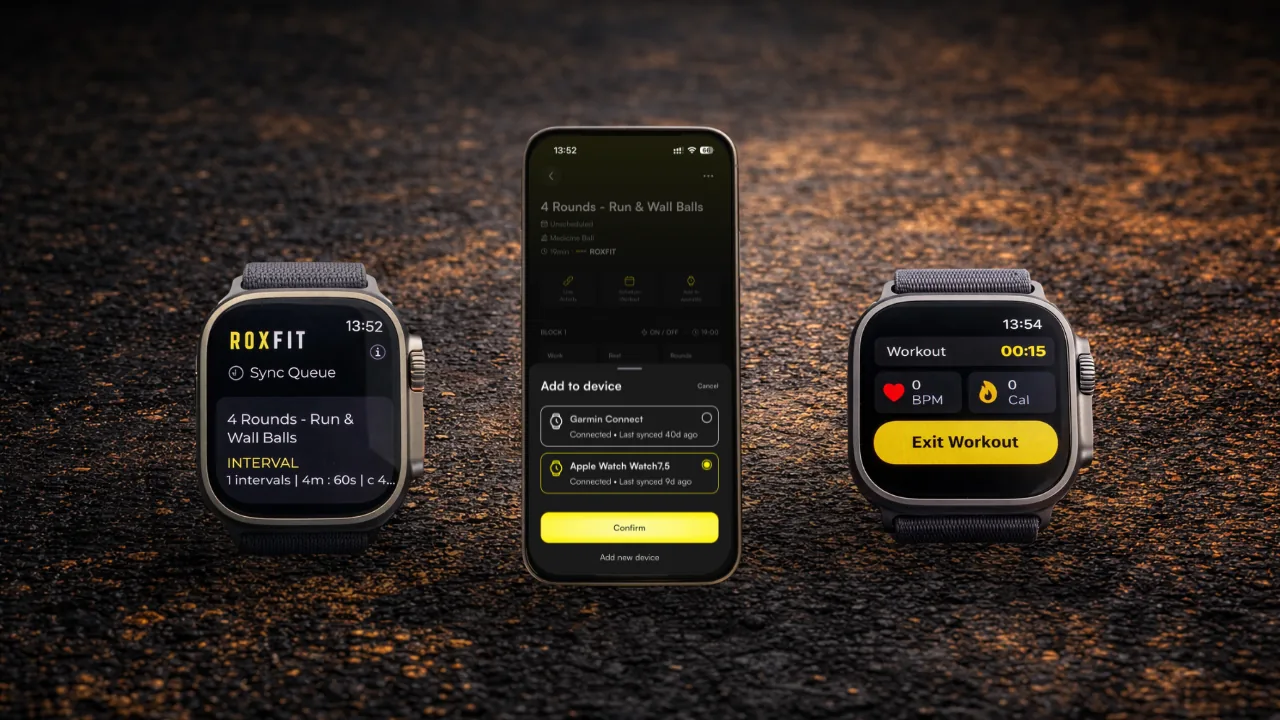
Any ROXFIT workout - training session, custom build, or plan workout - can go straight to your watch from the workout preview screen.
Steps
- Open the workout in the ROXFIT app on your iPhone.
- Tap the yellow Get Started button on the workout.
- Select Apple Watch.
- Choose your sync options.
- Tap Sync to Apple Watch.
- Wait for the confirmation.
6. Free Train: starting a session from your watch
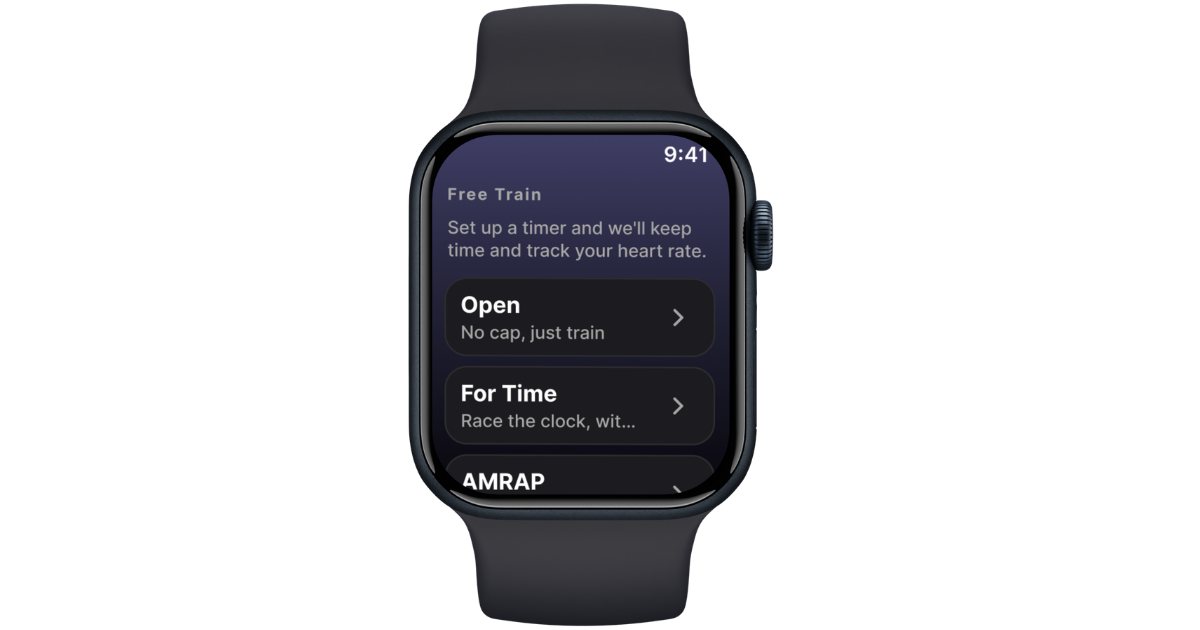
Free Train is the watch-native quick start. Use it when you don't have your phone, haven't synced a workout, or just want to get going. Structured workouts (Just Train, Race a Delta) still need to be set up on the phone and synced first - Free Train is the only session type you can start with the phone out of reach.
Steps
- Open ROXFIT on your Apple Watch.
- From the home screen, tap Free Train.
- Pick a preset block:
- For Time. Finish a target as fast as you can. Set a time cap.
- AMRAP. As many rounds as possible. Set total duration.
- EMOM. Every minute on the minute. Set interval length and number of intervals.
- On/off. Work and rest intervals. Set work, rest, and rounds.
- Configure the settings for your block. Defaults work for most sessions.
- Tap Start.
The watch runs as a timer with the standard player controls, metrics, and block-specific haptics (interval, round, work/rest cues).
After Free Train, the effort syncs back to your phone as a timer-only activity. You can then:
- Match it to an existing ROXFIT workout so it counts toward streaks, AppIQ, and TrainIQ.
- Enter splits manually.
- Leave it as a generic Free Train effort.
7. Watch settings
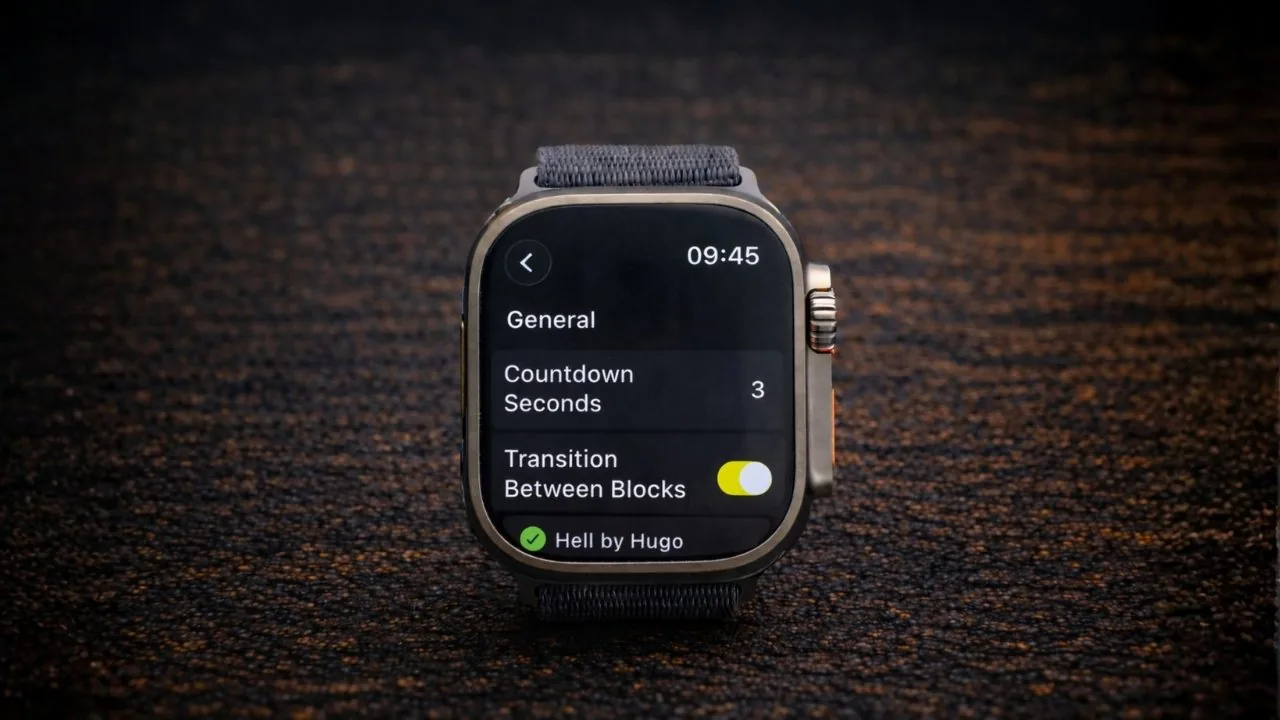
Before you start, swipe to the Settings tab (gear icon) to set how the workout runs.
| Setting | What it does |
|---|---|
| Countdown | Start countdown timer (0-30 seconds) |
| Transitions | Alerts between workout blocks and stations |
| Voice Alerts | Audio cues for countdown, halfway, exercise names, and next-up prompts |
| Knock Gesture | Control the workout with wrist knocks - skip exercises, pause |
| Action Button | Configure the Action Button (Ultra / Series 9+) to skip exercises |
| Haptics | Ahead/behind delta cues and split/segment alerts |
8. Running your workout
Steps
- Open ROXFIT on your Apple Watch.
- Tap your synced workout, or a Free Train block.
- Swipe to the Timer tab if needed.
- Tap Start.
Player controls during the session
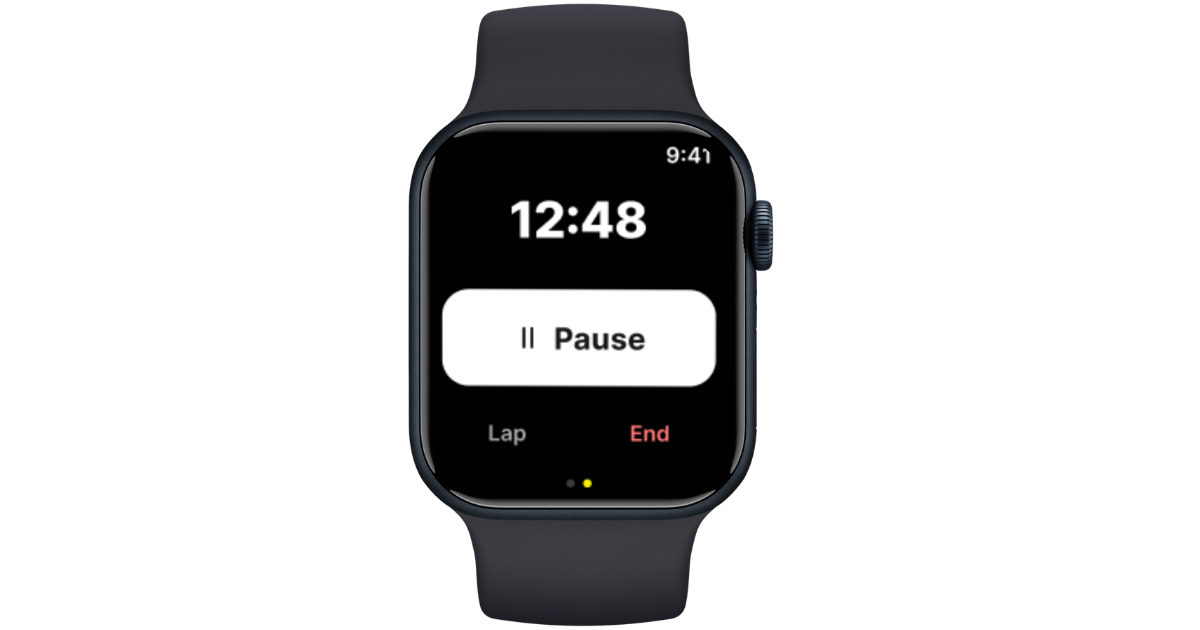
- Pause / Resume
- Lap. Mark a split mid-exercise.
- End. Finish the session. You'll see a confirmation: Save, Discard, or Resume.
The workout auto-advances between timed exercises. For rep-based movements, use the knock gesture or the Action Button to move on.
9. Race a Delta: race yourself, a friend, or Race Goals
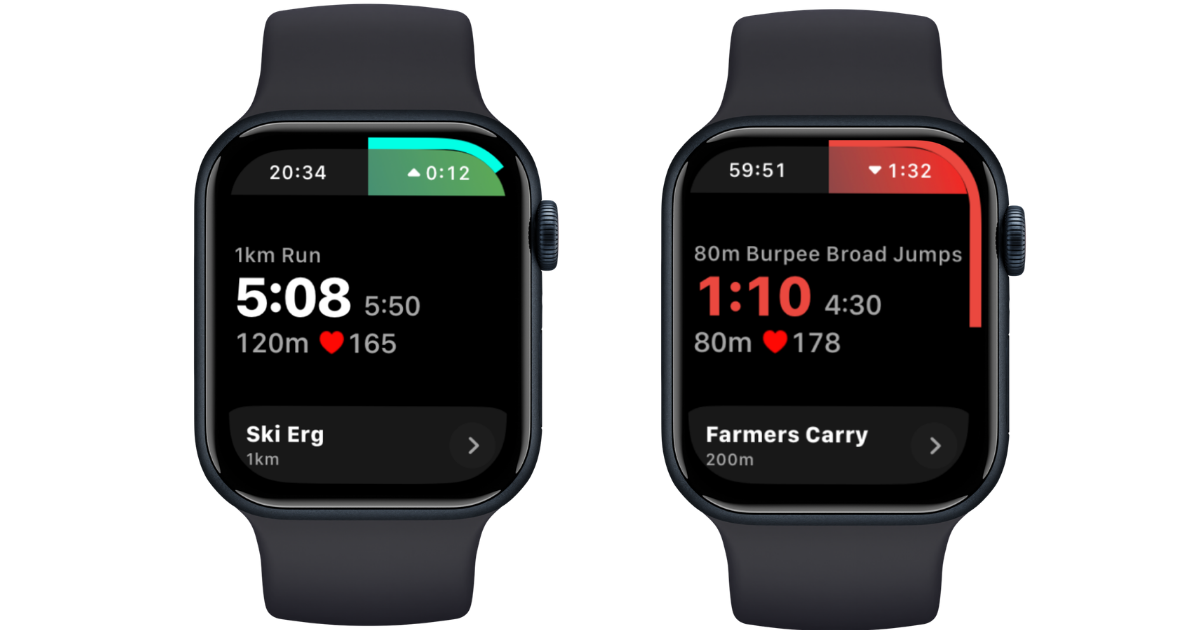
Race a Delta is the player state that runs you against a target. Three options, set on your phone before you sync:
- Yourself. Race your own previous result. The watch shows whether you're ahead or behind your last attempt at every station.
- A friend. Race a friend's published workout. Same logic, against their splits.
- Race Goals. Race your Race Goals plan. The watch shows the live delta against your station-by-station targets.
During the workout, the delta appears as a live readout and as haptic cues. A pattern when you're ahead, a different pattern when you're behind - you can pace yourself without looking at the screen.
If you don't pick an opponent, the player runs in Just Train mode. Same workout, no delta. Use Just Train when you want to train the session without racing.
10. In-workout: metrics, transitions, music, and haptics
Overview metrics: total time, heart rate, calories, pace.
Run to station transitions: the player handles the switch between running and station work, including Roxzone transitions, so your splits are recorded correctly.
Music handoff: playback hands off to the OS music player. Control your music from the watch's now-playing screen without leaving the workout.
Haptics
- Ahead/behind. Distinct patterns let you pace by feel.
- Splits and segments. Alerts when you hit a split or move into the next segment.
- Free Train blocks. Interval, round, and work/rest cues for AMRAP, EMOM, and on/off.
11. Viewing your results
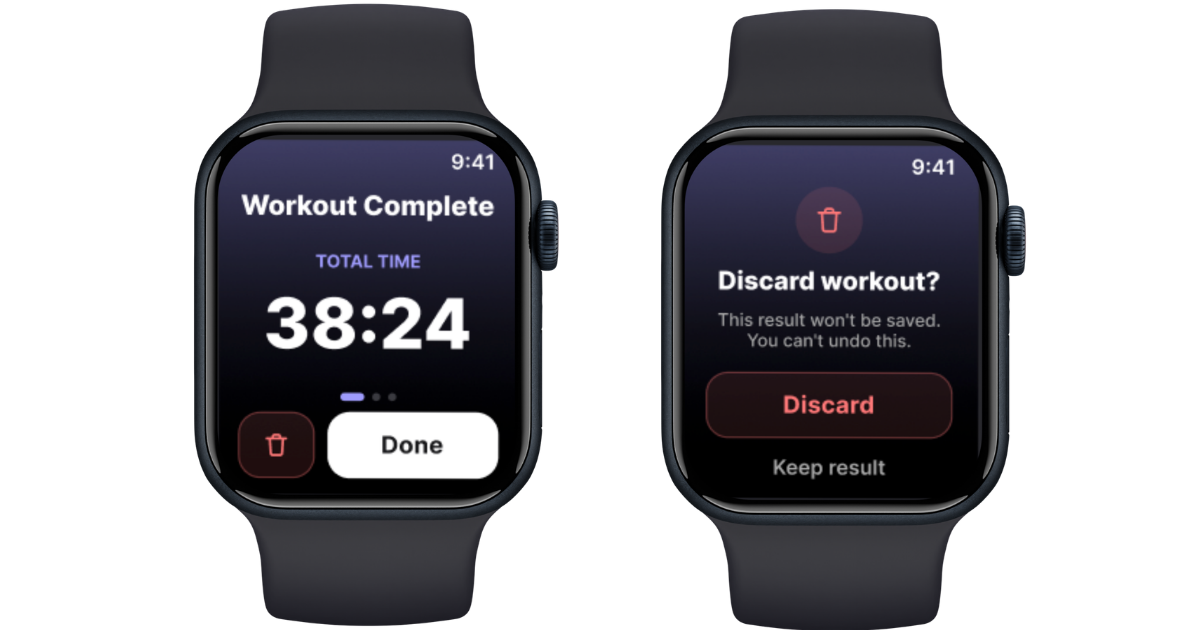
When you finish, the watch shows your total time, average heart rate, calories, splits, and (for Race a Delta) your final delta against the target.
Tap Exit Workout to leave the completion screen. To end a session early, pause then End & Save. Don't tap Discard unless you want the session gone permanently.
Results sync from your watch back to ROXFIT on your iPhone automatically. Open the workout in the app for the full breakdown.
What syncs to your phone
- Exercise splits and times for each station
- Heart rate data throughout
- Calories burned
- Overall duration
- Delta vs target (Race a Delta workouts)
- Which Apple Watch was used
12. Sync queue
Completed workouts are kept on your watch until they've successfully synced. Check status in the ROXFIT Watch app under Sync Queue:
- Pending. Waiting for a sync window.
- Syncing. In progress.
- Synced. Delivered to your phone.
- Failed. Retry as many times as needed - nothing is deleted until it's synced.
Everything is kept for up to 7 days, so even if you're without your phone on race day, your data is safe.
13. Connection and sensor states
The watch tells you when something isn't right. If you see one of these, the workout keeps running but some data may be missing until it recovers.
| State | What it means |
|---|---|
| GPS searching | Outdoor location not yet locked. Pace and distance use cadence until GPS catches. |
| Heart rate lost | The wrist sensor lost contact. Tighten the strap. |
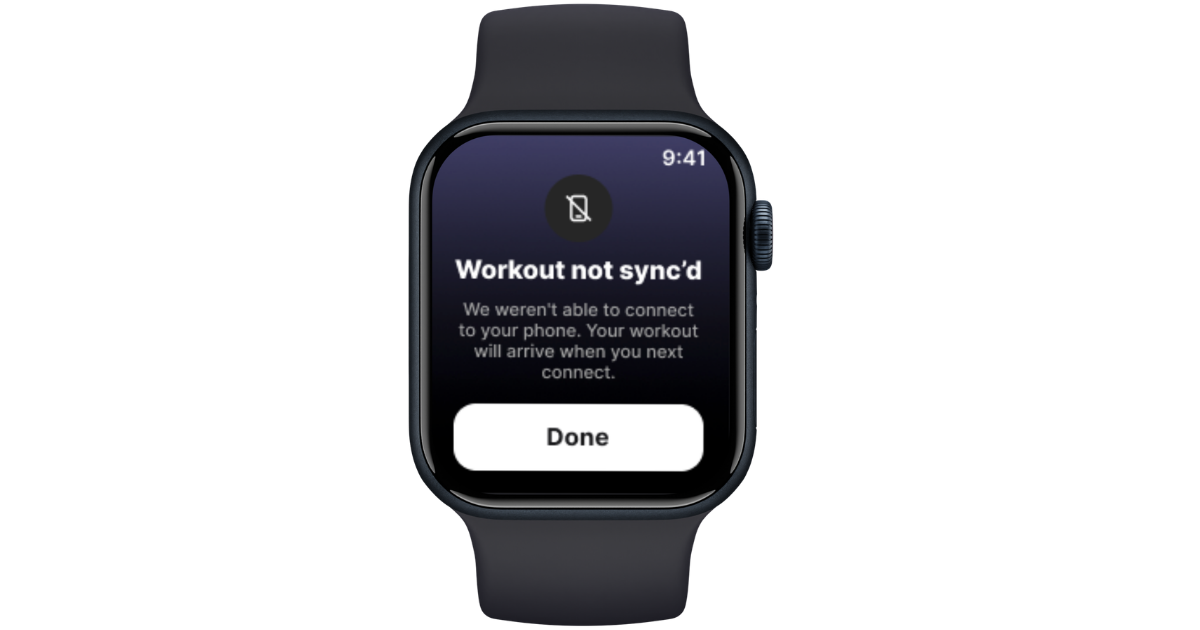
| Phone disconnected | The watch is out of Bluetooth range. The workout keeps running; results sync next time you're in range. |
14. Troubleshooting
| Issue | Fix |
|---|---|
| Watch not detected | Check it's paired in the Watch app. Restart both devices if needed. |
| Workout not syncing to watch | Keep your watch nearby. ROXFIT queues and delivers when it reconnects. |
| Results not syncing back | Open ROXFIT on your watch, check Sync Queue, and make sure Bluetooth is on. |
| No voice alerts | Connect Bluetooth headphones to your Apple Watch. Without them, audio routes to your iPhone. |
| Watch app not installed | Open the Watch app on your iPhone > My Watch > Available Apps > install ROXFIT. |
| Free Train effort not matched to a workout | Open the effort on your phone, tap Match, and select the ROXFIT workout it belongs to. |
| Delta not showing in Race a Delta | Make sure the opponent (yourself, friend, or Race Goals) is selected on the phone before syncing. |
