Syncing to Wear OS
Your workout. Your watch. Your wrist.
Phone-free training starts here. This guide covers pairing your Wear OS watch, syncing Race Goals splits and training workouts, running a session with no phone in sight using Free Train, and racing yourself, a friend, or your race plan with Race a Delta.
1. Connecting ROXFIT to your Wear OS watch
Your Wear OS watch needs to be paired to your phone through its manufacturer's companion app before ROXFIT can see it - for example Wear OS by Google or Galaxy Wearable for Samsung watches.
What you need
- A Wear OS watch
- Your watch paired to your phone in its companion app
- ROXFIT installed (and up to date) on your Android phone
Steps
- Pair your watch to your phone using its manufacturer's companion app, if you haven't already.
- Open ROXFIT on your phone.
- Tap the profile icon in the bottom-right corner.
- Tap the settings cog in the top-right corner.
- Tap Connected apps and devices.
- Select Wear OS. ROXFIT detects your paired watch and registers it.
2. Installing the ROXFIT app on your watch
Unlike Apple Watch, the ROXFIT Wear OS app doesn't come bundled with the phone install. Install it directly from the Play Store.
Steps
- On your watch, open the Play Store app.
- Search for ROXFIT.
- Tap Install.
- Once installed, open the app from your watch's app list to confirm it's ready.
You can also install it from your phone: open the Play Store, search for the ROXFIT Wear OS app, and tap Install on watch.
3. Granting permissions
The first time you open ROXFIT on your watch, it asks for permissions:
- Health & Fitness (Health Services) for heart rate, calories, and session logging.
- Location for GPS-based pace and distance.
- Notifications for sync and workout alerts.
Approve all three. One advantage over Apple Watch: Wear OS permissions are re-promptable, and you can deep-link straight to the settings screen. If you deny one by mistake, you're not locked out - go to your watch's Settings > Apps > ROXFIT > Permissions and turn it on directly.
4. How workouts get to your watch
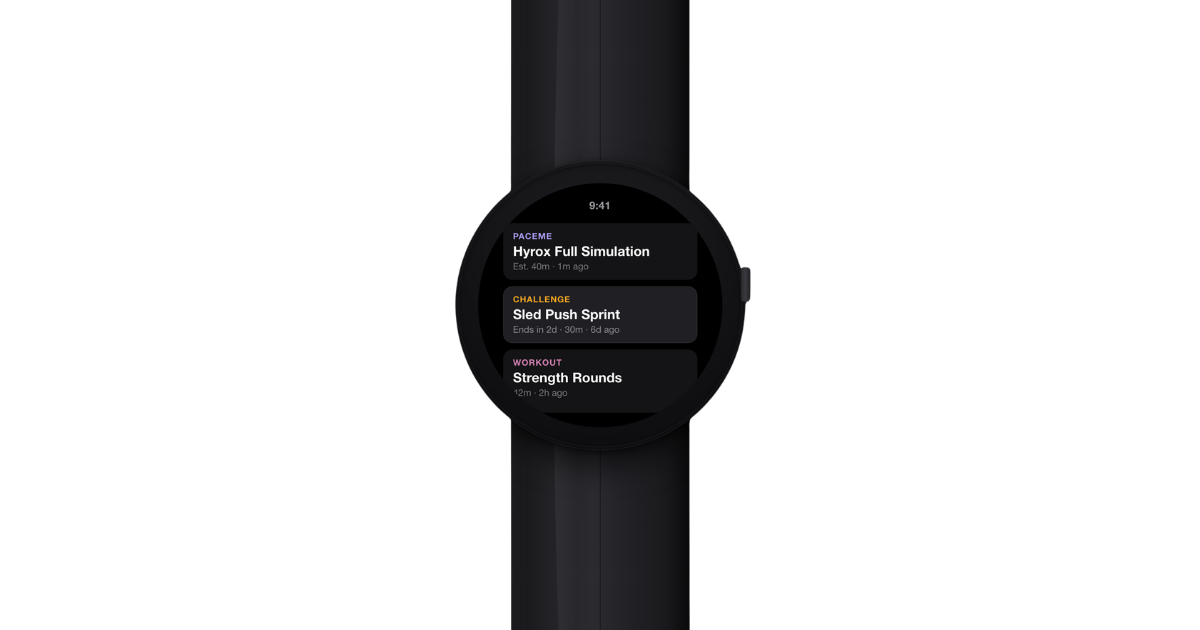
Structured workouts and race plans are set up on your phone and synced to the watch. The phone is your control room. The watch is your player.
There's one exception. Free Train lets you start a quick timer session straight from the watch, no phone or sync needed. See section 7.
Sending a workout to your watch
- Open ROXFIT on your phone.
- Find or create a workout.
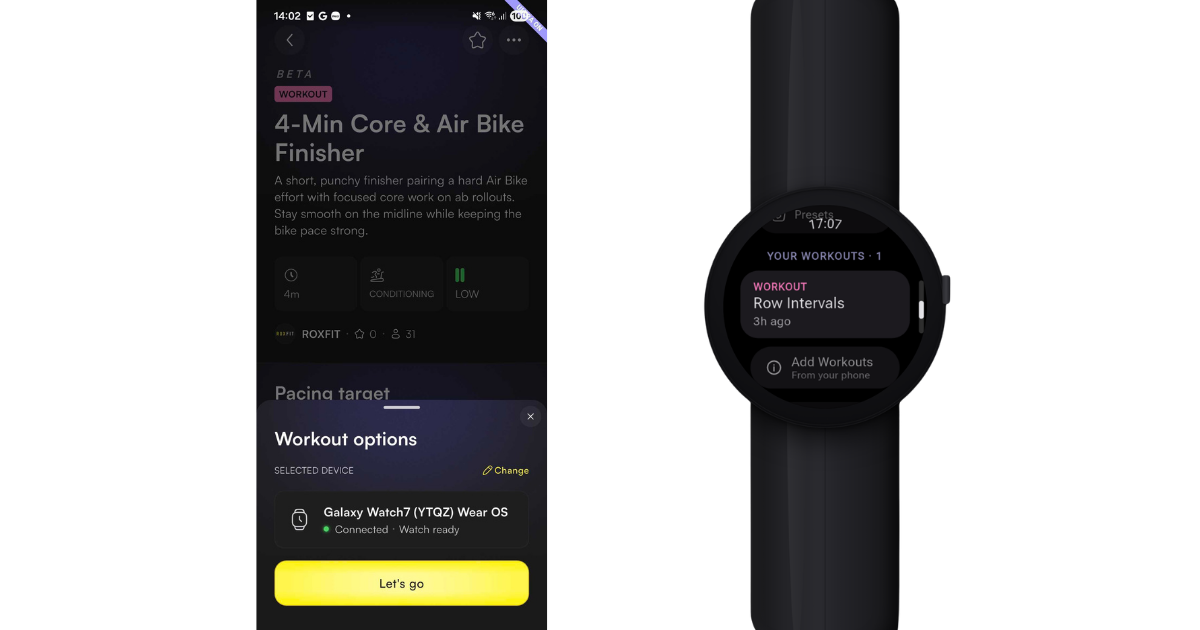
- Tap the yellow Get Started button on the workout.
- Select your Wear OS watch from the device list, or add it as a new device.
- Tap Sync to Watch.
- Wait for the confirmation.
Synced workouts appear in your watch's workout list automatically. You can have multiple on the watch at once.
5. Syncing a Race Goals workout
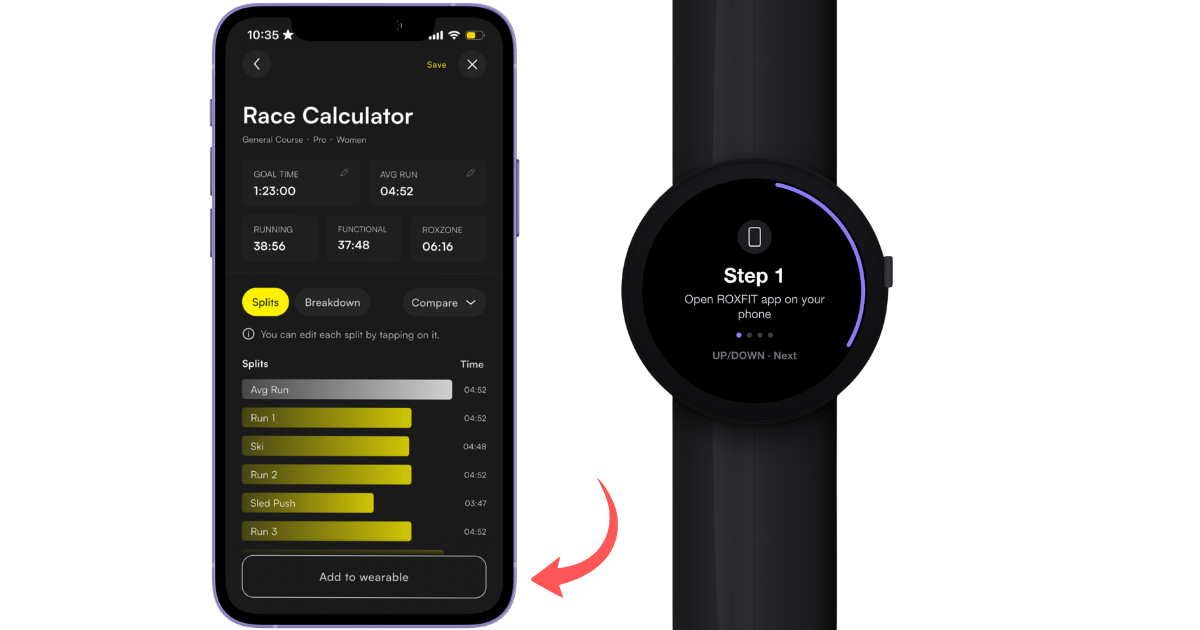
Race Goals is your race plan. When it's on your wrist, you see at every station whether you're ahead or behind your target, live.
Steps
- On the Race Calculator page, tap the event you want to race.
- Set up the race target you want to achieve - your goal time, station splits, and run pace. This is the target your watch will race you against.
- Tap Add pacing to wearable.
- Select Wear OS from the device list.
- Wait for the confirmation: "Workout synced to [Watch Name]!"
During the race you'll see a live pace delta, seconds ahead or behind your target at every checkpoint.
6. Syncing a training workout
Any ROXFIT workout - training session, custom build, or plan workout - can go straight to your watch.
Steps
- Open the workout in ROXFIT on your phone.
- Tap the yellow Get Started button on the workout.
- Select your Wear OS watch.
- Tap Sync to Watch.
- Wait for the confirmation.
7. Free Train: starting a session from your watch
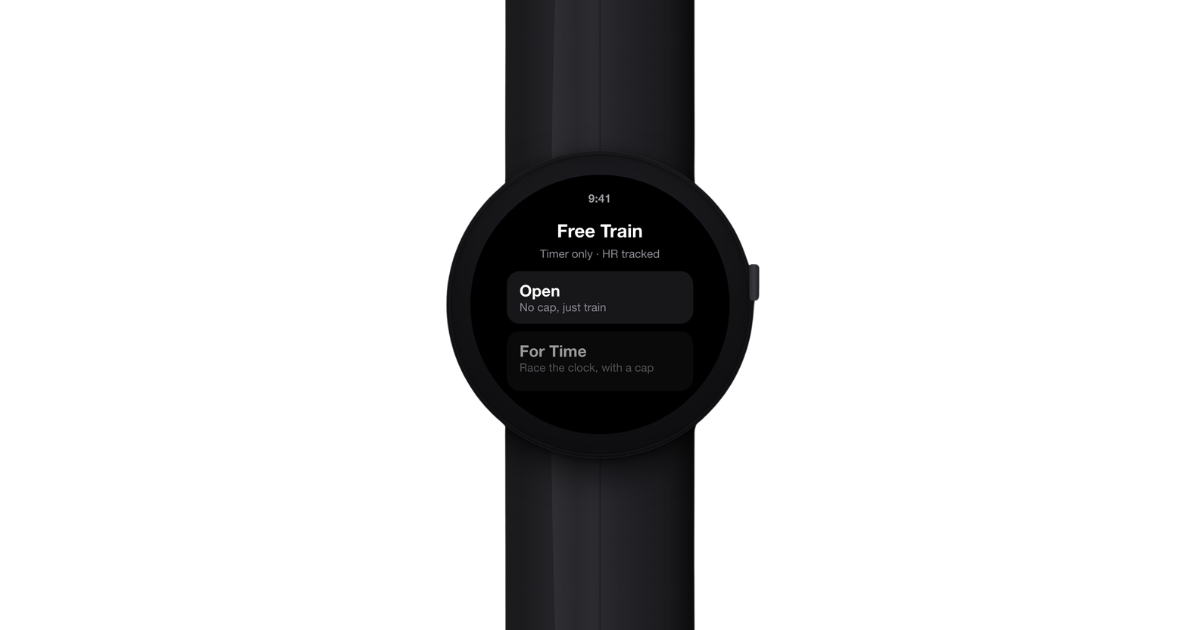
Free Train is the watch-native quick start. Use it when you don't have your phone, haven't synced a workout, or just want to get going. Structured workouts (Just Train, Race a Delta) still need to be set up on the phone and synced first - Free Train is the only session type you can start with the phone out of reach.
Steps
- Open ROXFIT on your watch.
- From the home screen, tap Free Train.
- Pick a preset block:
- For Time. Finish a target as fast as you can. Set a time cap.
- AMRAP. As many rounds as possible. Set total duration.
- EMOM. Every minute on the minute. Set interval length and number of intervals.
- On/off. Work and rest intervals. Set work, rest, and rounds.
- Configure the settings for your block. Defaults work for most sessions.
- Tap Start.
The watch runs as a timer with the standard player controls, metrics, and block-specific haptics (interval, round, work/rest cues).
After Free Train, the effort syncs back to your phone as a timer-only activity. You can then:
- Match it to an existing ROXFIT workout so it counts toward streaks.
- Enter splits manually.
- Leave it as a generic Free Train effort.
8. Watch settings
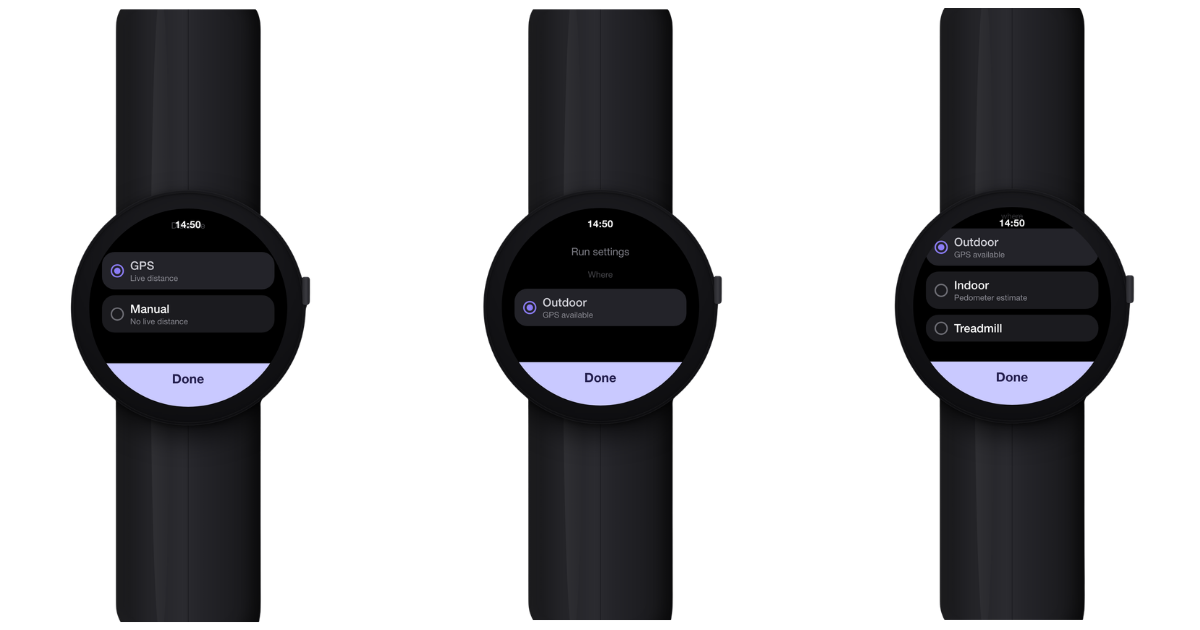
Before you start, open the Settings tab to set how the workout runs.
Where
| Option | What it does |
|---|---|
| Outdoor | Distance from live GPS. Best for outdoor training and races. |
| Indoor | Distance from watch steps. Use for indoor tracks and stations without GPS. |
| Treadmill | Timer only, no distance tracking. Press lap yourself. |
| Setting | What it does |
|---|---|
| Countdown | Start countdown timer (0-30 seconds) |
| Transitions | Alerts between workout blocks and stations |
| Voice Alerts | Audio cues for countdown, halfway, exercise names, and next-up |
| Haptics | Ahead/behind delta cues and split/segment alerts |
9. Running your workout
Steps
- Open ROXFIT on your watch.
- Tap your synced workout, or a Free Train block.
- Tap Start.
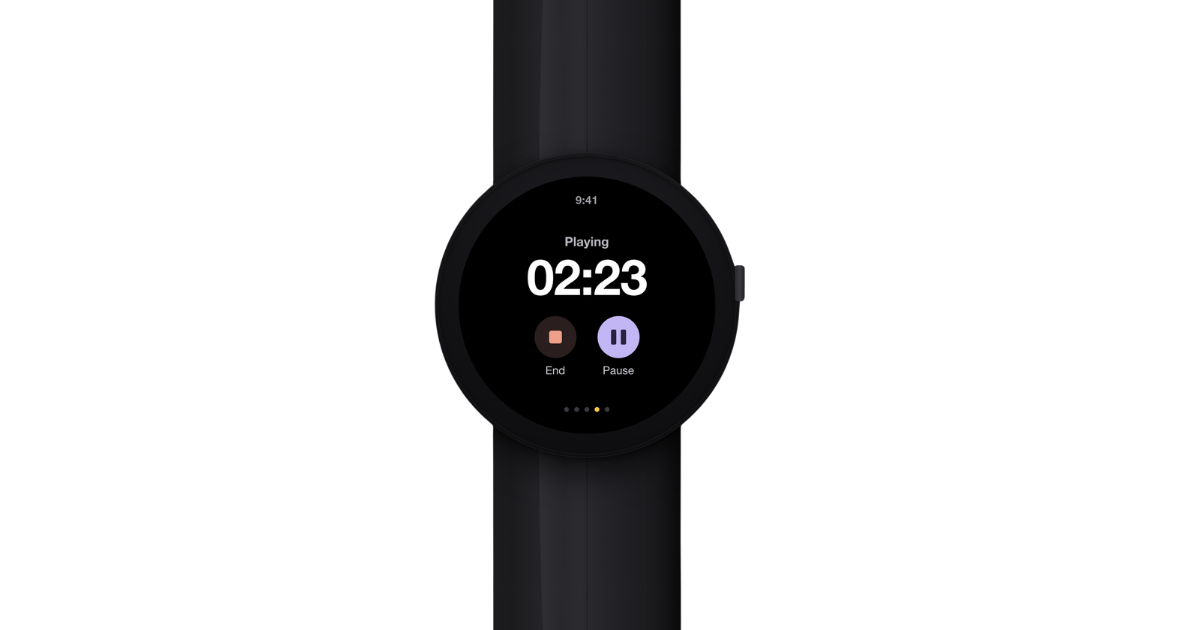
Player controls during the session
- Pause / Resume
- Lap. Mark a split mid-exercise.
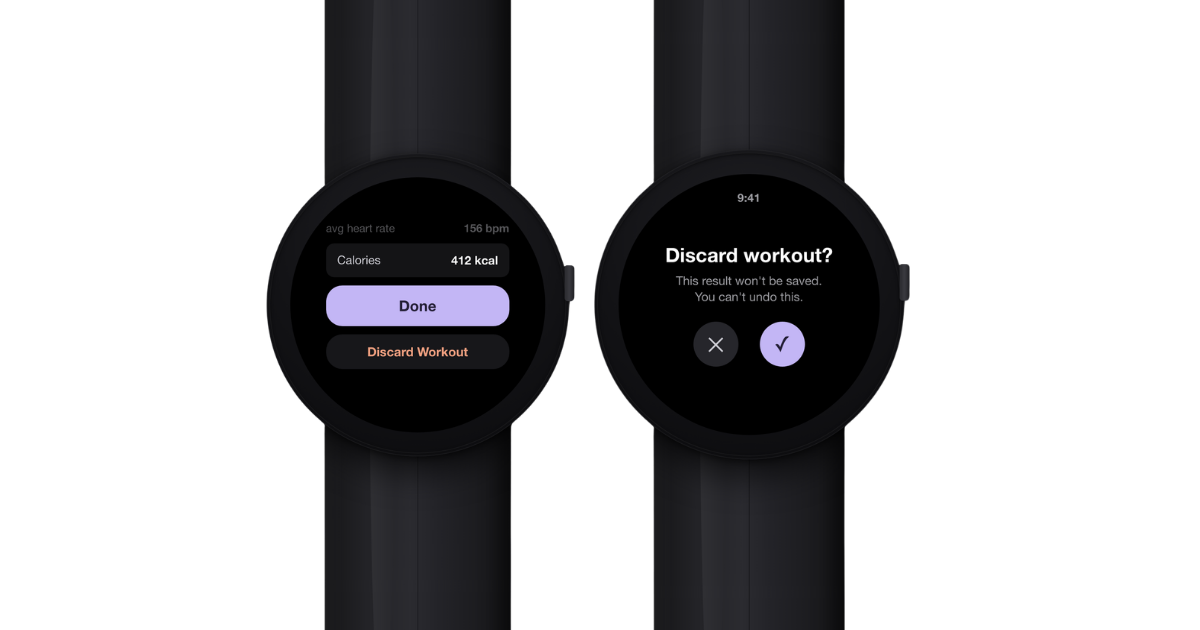
- End. Finish the session. You'll see a confirmation: Save, Discard, or Resume.
The workout auto-advances between timed exercises. For rep-based movements, use the on-screen control to move on.
10. Race a Delta: race yourself, a friend, or Race Goals
Race a Delta is the player state that runs you against a target. Three options, set on your phone before you sync:
- Yourself. Race your own previous result. The watch shows whether you're ahead or behind your last attempt at every station.
- A friend. Race a friend's published workout. Same logic, against their splits.
- Race Goals. Race your Race Goals plan. The watch shows the live delta against your station-by-station targets.
During the workout, the delta appears as a live readout and as haptic cues. A pattern when you're ahead, a different pattern when you're behind - you can pace yourself without looking at the screen.
If you don't pick an opponent, the player runs in Just Train mode. Same workout, no delta. Use Just Train when you want to train the session without racing.
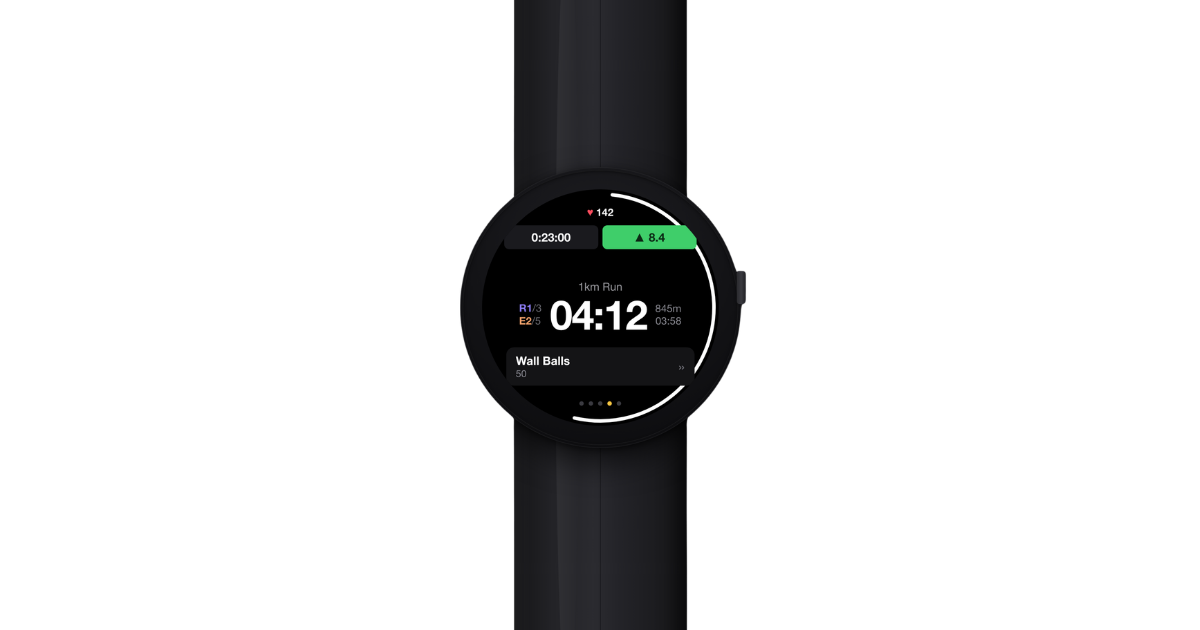
11. In-workout: metrics, transitions, music, and haptics
Overview metrics: total time, heart rate, calories, pace.
Run to station transitions: the player handles the switch between running and station work, including Roxzone transitions, so your splits are recorded correctly.
Music: hands off to your watch's media controls (e.g. Spotify, YouTube Music). Control playback from the watch without leaving the workout.
Haptics
- Ahead/behind. Distinct vibration patterns let you pace by feel.
- Splits and segments. Vibration when you hit a split or move into the next segment.
- Free Train blocks. Interval, round, and work/rest cues for AMRAP, EMOM, and on/off.
12. Viewing your results
When you finish, the watch shows your total time, average heart rate, calories, splits, and (for Race a Delta) your final delta against the target.
Save your workout on the watch. Don't tap Discard unless you want the session gone permanently - that data is what syncs back to ROXFIT.
You cannot edit splits after completion. If you missed a lap during the session, it can't be added retrospectively.
What syncs to your phone
- Exercise splits and times for each station
- Heart rate data throughout
- Calories burned
- Overall duration
- Delta vs target (Race a Delta workouts)
- Which watch was used
13. Sync queue
Completed workouts are kept on your watch until they've successfully synced. Check status in the ROXFIT watch app under Sync Queue:
- Pending. Waiting for a sync window.
- Syncing. In progress.
- Synced. Delivered to your phone.
- Failed. Retry as many times as needed - nothing is deleted until it's synced.
Everything is kept for up to 7 days, so even if you're without your phone on race day, your data is safe.
14. Connection and sensor states
If the watch shows one of these, the workout keeps running but some data may be missing until it recovers.
| State | What it means |
|---|---|
| GPS searching | Outdoor location not yet locked. Pace and distance use cadence until GPS catches. |
| Heart rate lost | The wrist sensor lost contact. Tighten the strap. |
| Phone disconnected | The watch is out of Bluetooth range. The workout keeps running; results sync via the Sync Queue next time you're in range. |
15. Troubleshooting
| Issue | Fix |
|---|---|
| Can't connect Wear OS watch | Confirm it's paired to your phone in its companion app and within Bluetooth range. Try disconnecting and reconnecting from Connected apps and devices. |
| ROXFIT app not on watch | Open the Play Store on your watch, confirm ROXFIT is installed. |
| Workout not appearing on watch | Keep your watch within Bluetooth range. ROXFIT queues and delivers when it reconnects. |
| Results not syncing back | Open ROXFIT on your watch, check Sync Queue, and make sure Bluetooth is on. |
| Permission denied by mistake | Go to your watch's Settings > Apps > ROXFIT > Permissions and turn it on there directly. |
| Free Train effort not matched to a workout | Open the effort on your phone, tap Match, and select the ROXFIT workout it belongs to. |
| Delta not showing in Race a Delta | Make sure the opponent (yourself, friend, or Race Goals) is selected on the phone before syncing. |
| Missed a lap mid-workout | Splits can't be edited after completion. Practise the button rhythm in training. |
