Finding and Linking Your Race Results
Your race history. All of it. Right here.
Every finish time, every station split, every ranking. Link it all to your profile and analyse it in one place. Here you'll learn how you find your results, understand what they're telling you, and use them to race better next time.
1. Finding your race results
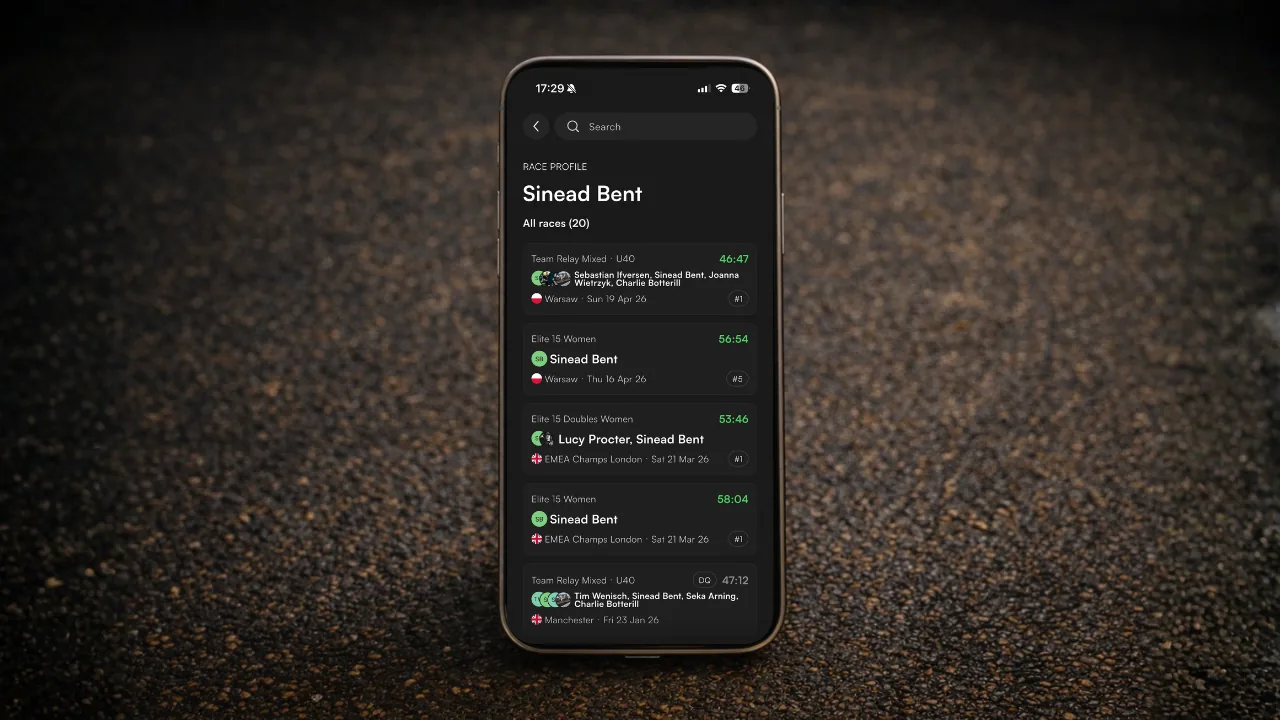
Search any HYROX race result by athlete name (yours or anyone else's if you just want to be nosy).
Steps
- Go to the Races view and tap the Events tab.
- Tap the search bar at the top.
- Type the athlete's name - this will have to match what was entered into the HYROX ticket in order to show.
- Results appear grouped by name. Tap any result to open the full detail.
2. Understanding your result
The race result page is a complete breakdown of your performance from station to station, not just a finish time.
What you'll see before an event
- Athlete info: name, division, age group, race name
- Status: Upcoming, Live, or Completed
- Overall and age group rankings (#OV, #AG)
For completed races
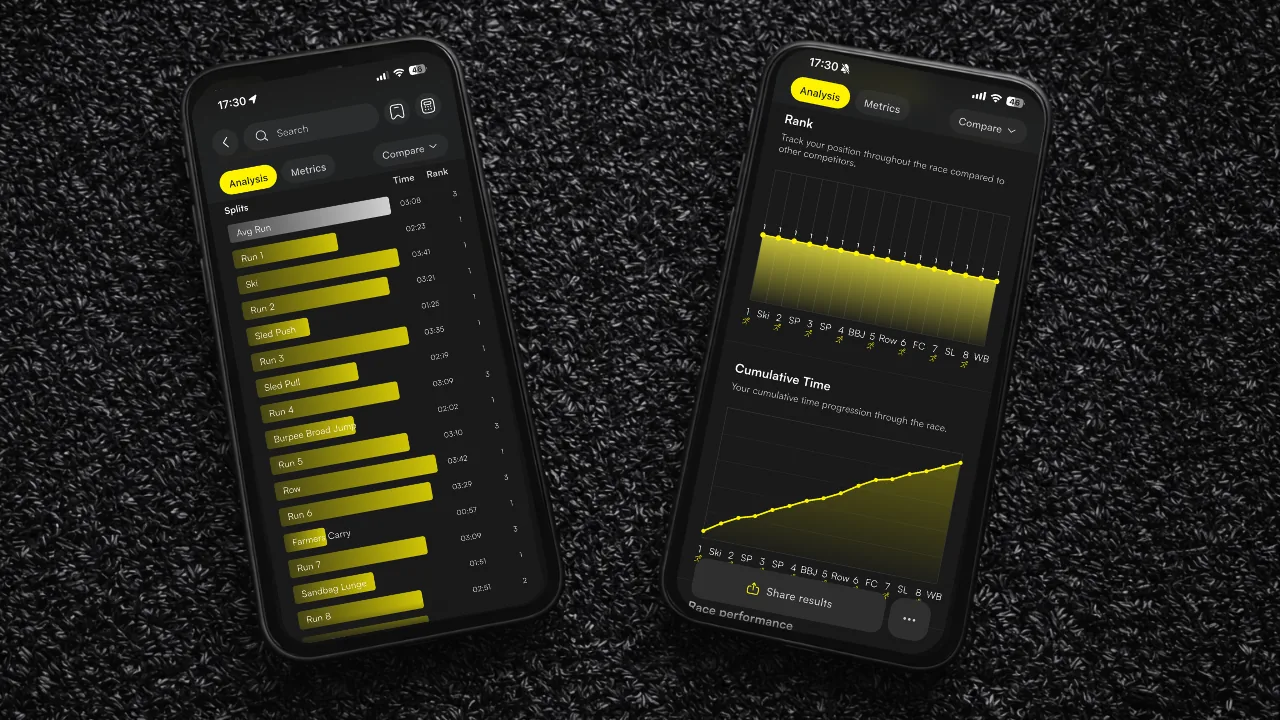
- Splits view: time for each station and each 1km run, and the ranking of each
- Rank view: where the athlete ranked at each station within the race on a single graph
- Cumulative time: a pacing curve showing how your effort was distributed across the race - useful for spotting where you went out too hard, or where you left time on the table
- Race performance: a spider diagram showing your strengths and weaknesses compared to one another throughout the race
- Metrics: multiple line graphs for each station showing where you ranked against competitors in the field
3. Linking results to your profile
Linking your race results is what unlocks your full race history, tracks your PBs over time, and feeds into your year-in-review. The more results you link, the more useful ROXFIT gets.
Steps
- Find your race results using the same method in step 1.
- Tap the result and tap the three dots.
- Tap Link Race.
Alternatively
- Go to the Races tab.
- Tap the yellow + Add races button.
- Search for the race and add it to your profile.
If a result is on the HYROX website but won't come up in search, copy its link from the HYROX website, then tap + Add races > Add past race > I can't find my race and paste it in.
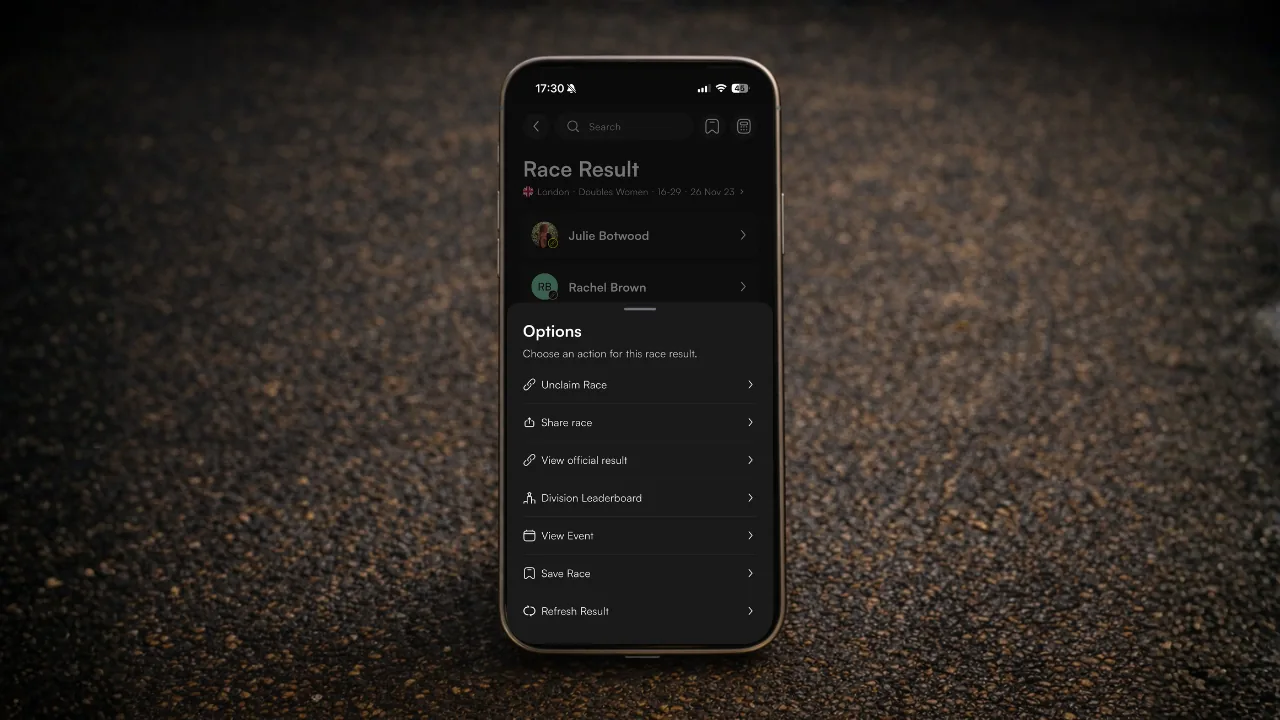
4. Unlinking a result
Linked the wrong race? It happens. Common names, similar results, a doubles partner with the same name. You can unlink any result from your profile without losing the data.
Steps
- Go to the You tab.
- Tap the Races tab.
- Find the result you want to remove and tap it.
- Tap the three dots and tap Remove race.
The result is removed from your profile but stays in the ROXFIT database. If there is a race that does not belong to you suggested on the homepage, check your profile. As long as it isn't linked, it will not affect your stats.
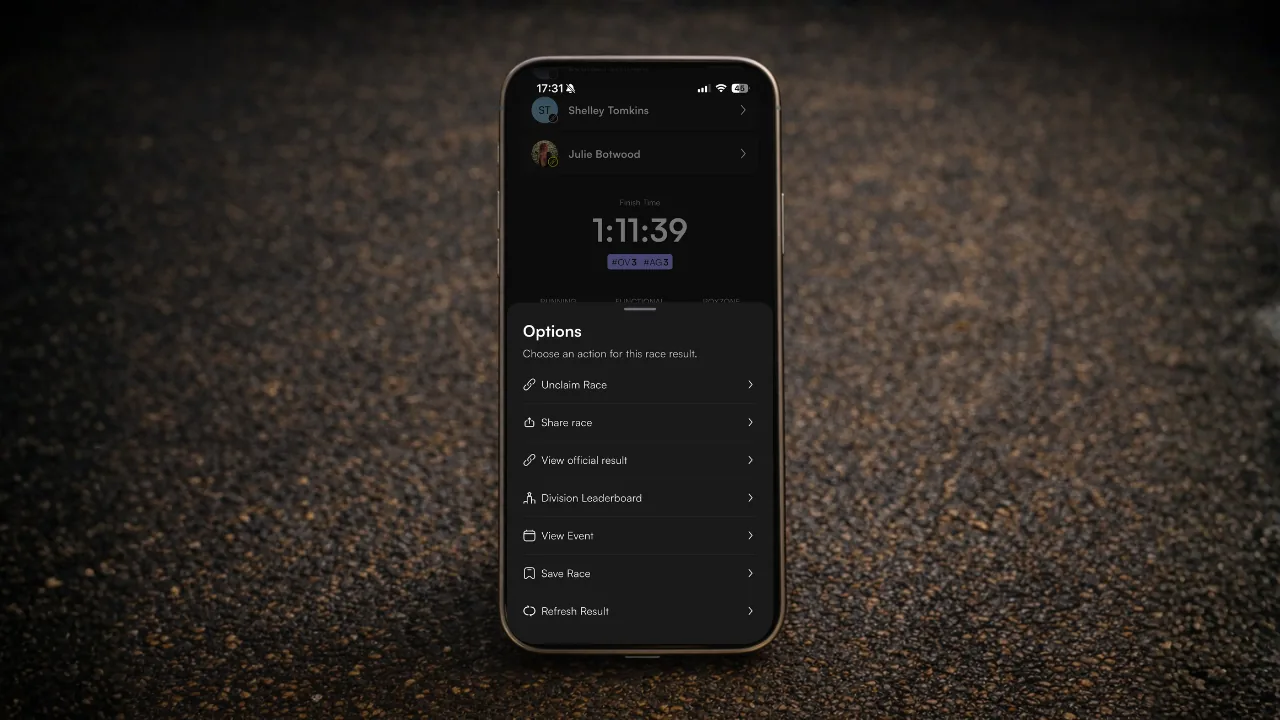
5. Refreshing your results
HYROX results sometimes update after initial publication. Rankings get recalculated, splits get corrected, DNS or DNF statuses get resolved, penalties get removed. If your result looks wrong or your ranking hasn't updated, a manual refresh pulls the latest data directly from HYROX.
Steps
- Open the race result you want to update.
- Tap the three dots next to the Share results button.
- Select Refresh result at the bottom.
- ROXFIT pulls the latest data from HYROX and updates your result.
Worth doing if you've just raced and your splits or ranking don't look right, or if you're waiting on HYROX to remove a penalty. Results can take time to finalise after a large event - refreshing a few hours later usually sorts it.
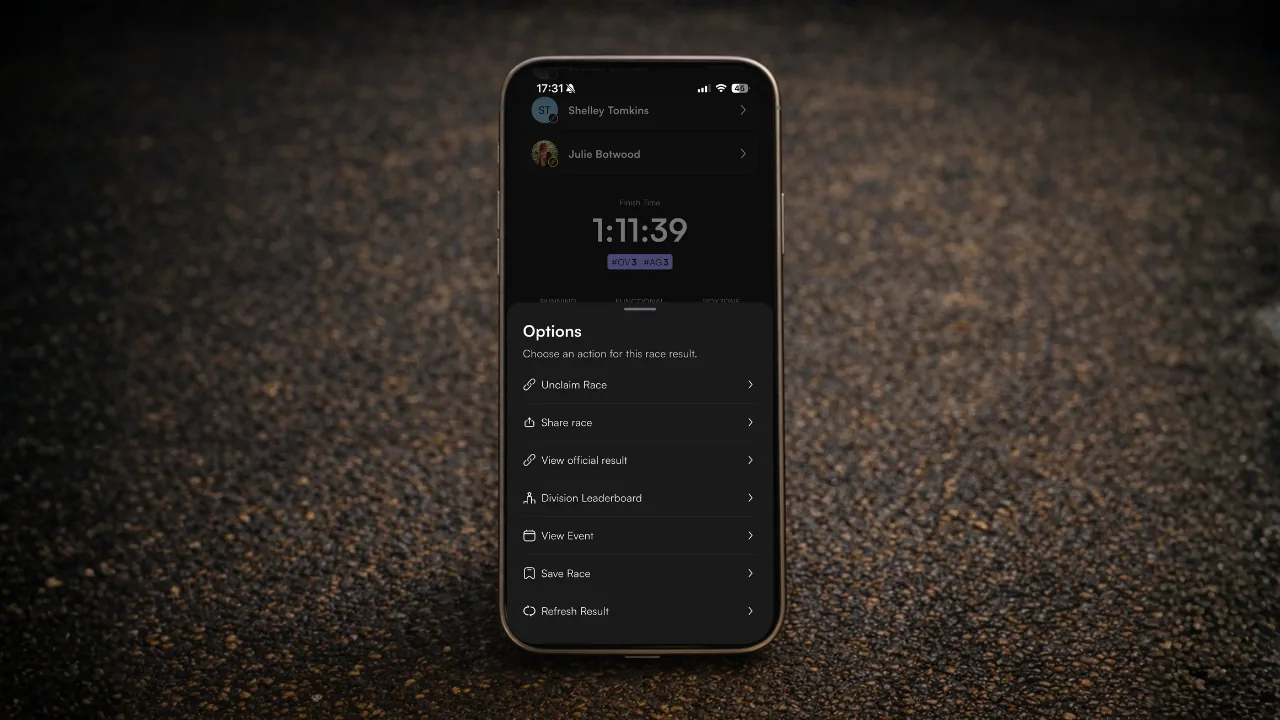
6. Comparing your splits
This is where it gets useful. Open any completed result, tap Compare, and benchmark your splits against the field.
| Compare selector | What it does |
|---|---|
| Race average | Compare against the race average for your division |
| Age group average | Compare against the average for your age group |
| Wave average | Compare against the average for your wave |
| Saved race | Compare against one of your saved race results |
| Tracked race | Compare against a result you're tracking |
| Other race | Search for any athlete and compare directly |
The splits table highlights where you're faster or slower than the comparison. If your Sled Push is costing you thirty seconds on the field every race, this is where you find out.
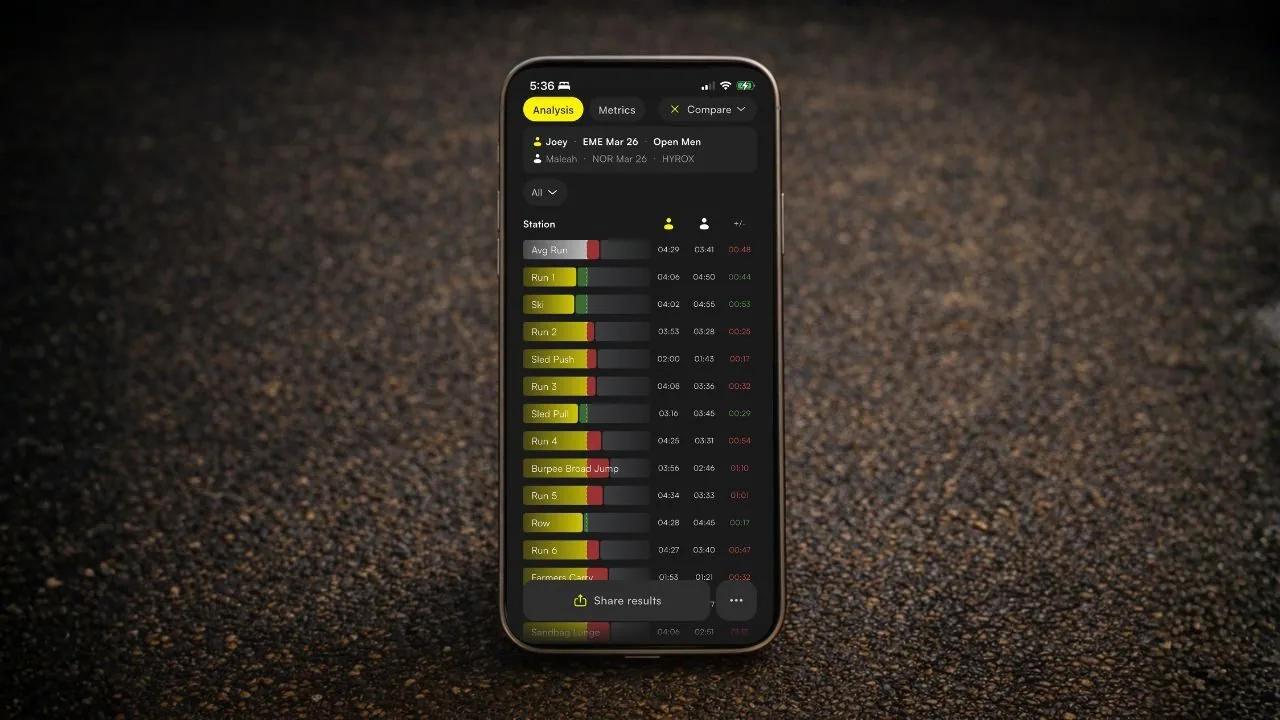
7. Sharing your results
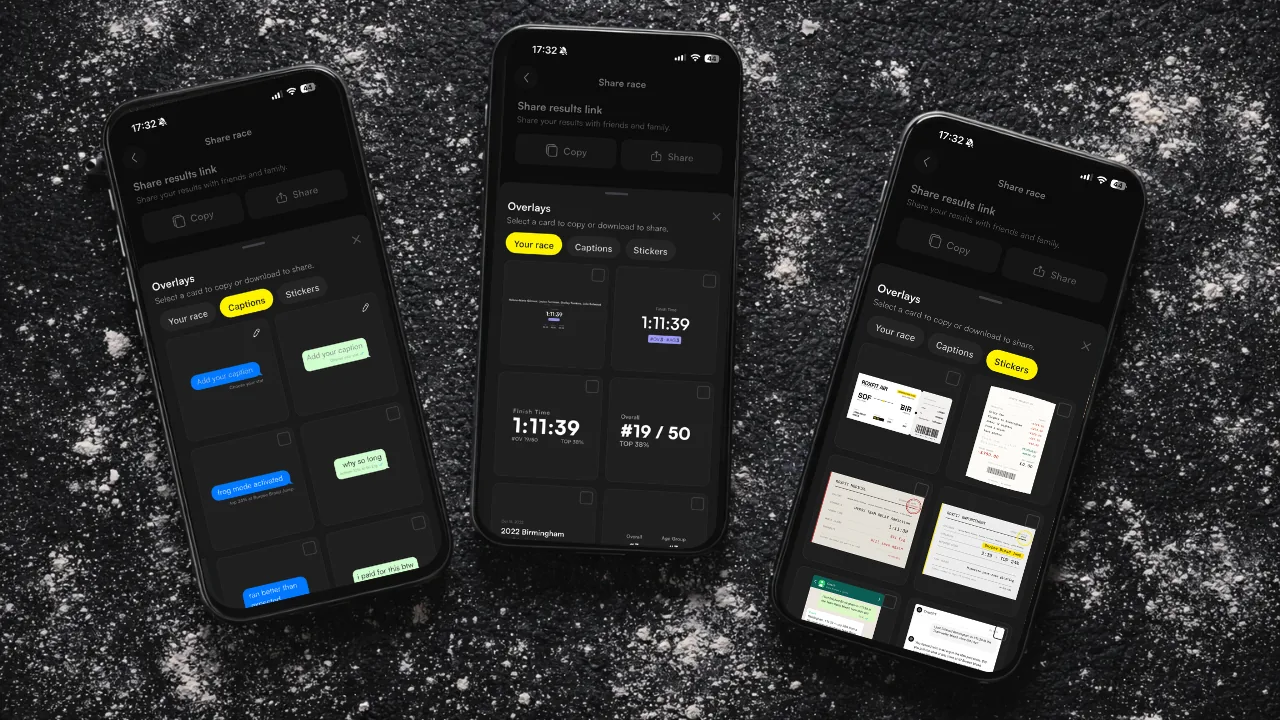
Share any result as a link that opens directly in ROXFIT by tapping Share results and selecting Copy or Share - that sends a link straight to whichever app you choose. But the most interesting thing you can share are your overlays and stickers to social media.
Sharing overlays and stickers
- Tap Share results on your result.
- Tap See All next to Overlays.
- Select the overlays and stickers you want.
- Download them to your phone.
- Add them to any image or video before you post online.
You can also give ROXFIT permission to your camera roll, add overlays directly to images in the app, and download or share instantly.